The following functionality is coming soon to Axxess Hospice. Axxess will alert you when this feature is available. Check your messages in Axxess Hospice for important alerts from Axxess.
Axxess Hospice now enables users to add communication notes to patient charts and send them as messages to other users. This enhancement streamlines operations and facilitates seamless collaboration to improve the patient experience.
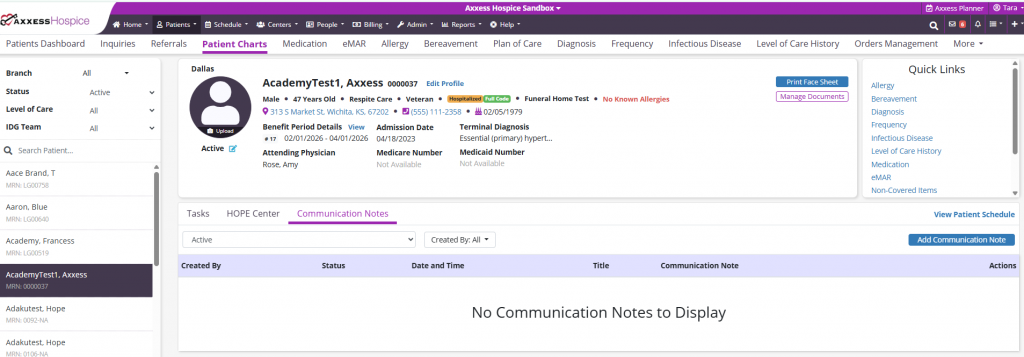
To add a communication note to a patient’s chart, navigate to the Patients tab and select Patient Charts. In the patient’s chart, navigate to the Communication Notes tab and select Add Communication Note.
Patients tab ➜ Patient Charts ➜ Communication Notes tab ➜ Add Communication Note
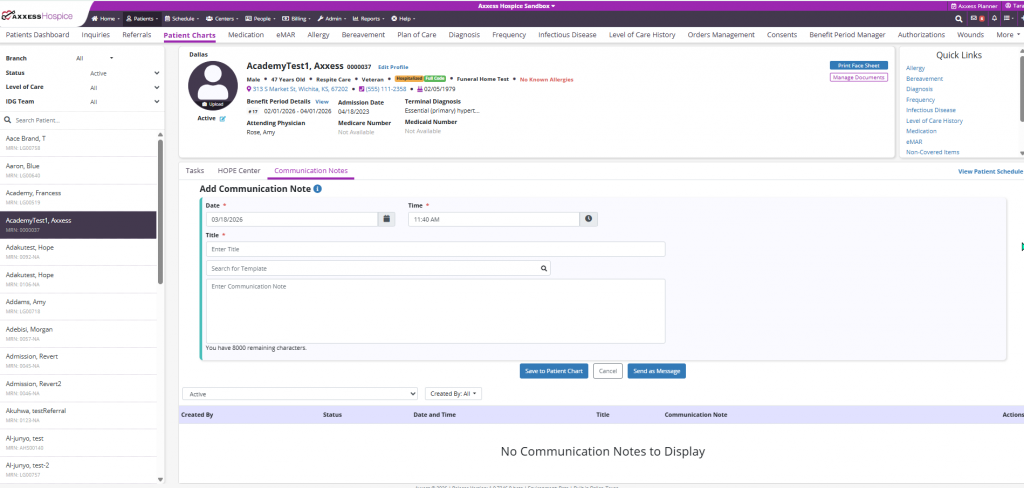
In the Add Communication Note window, enter the appropriate information in the text box. Users can also elect to use a template to create the message. To save the note to the patient’s chart, click Save to Patient Chart. To send the note as a message to another user, click Send as Message.
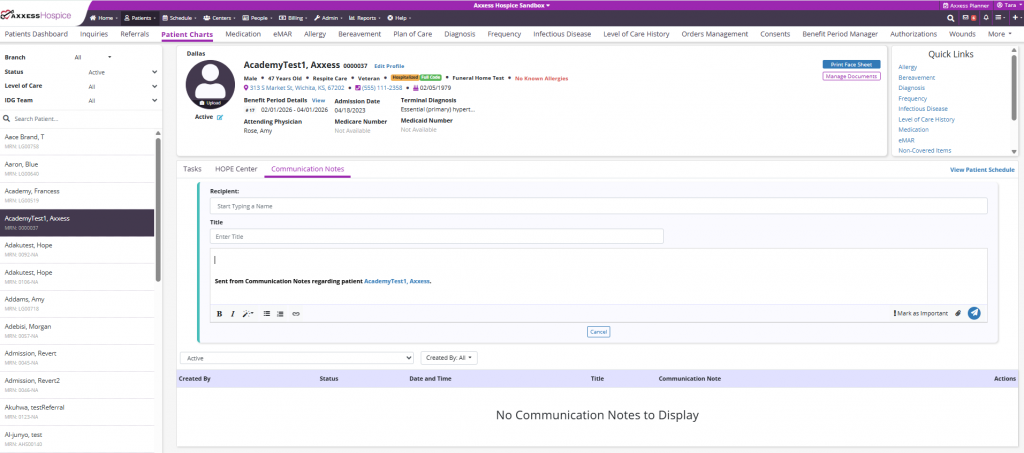
When Send as Message is selected, enter a recipient in the Recipient field and click the plane icon to finish sending the message. When a communication note is sent as a message, the note will automatically be saved to the patient’s chart.
When Save to Patient Chart is selected, but the user then decides to send the note as a message, navigate to the Communication Notes tab and select the plane icon under Actions.
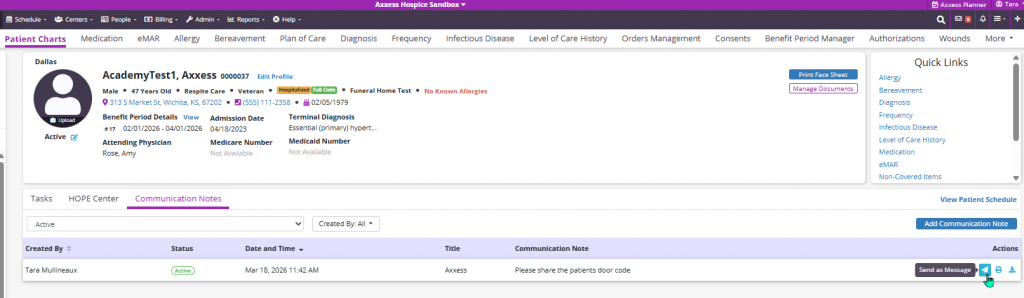
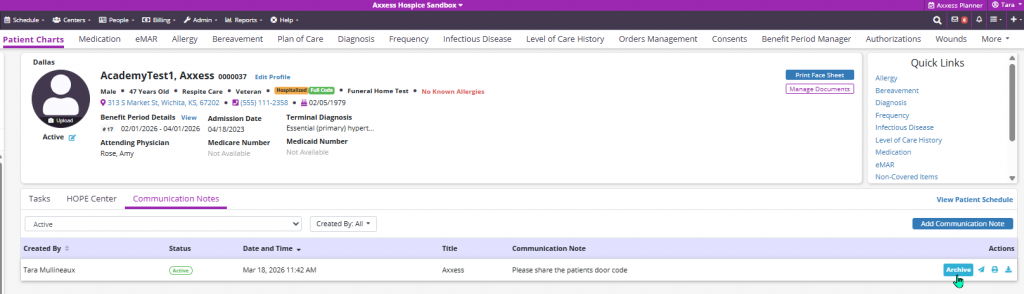
To archive a communication note that is no longer needed, select Archive under Actions.
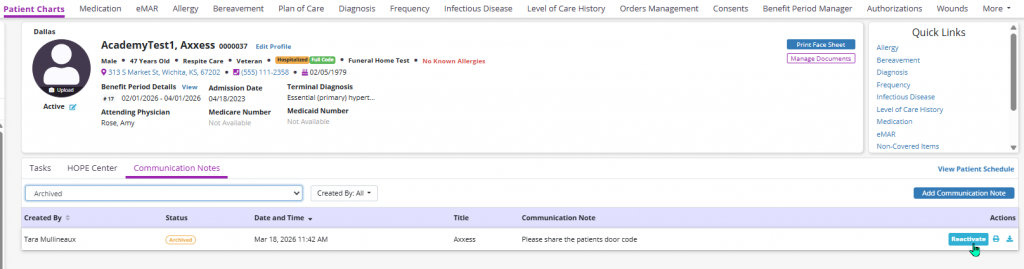
To change the status of a note that has been archived, filter the archived notes and select Reactivate under Actions.
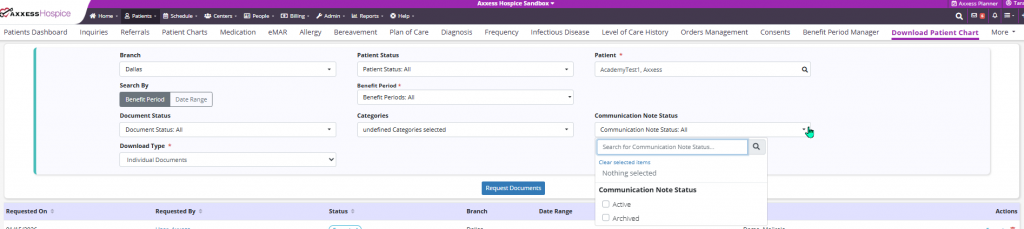
To include communication notes when downloading a patient’s chart, select the desired note statuses from the Communication Note Status menu on the Download Patient Chart screen. Notes that fall under the selected statuses will appear on the downloaded patient chart.
Patients tab ➜ Download Patient Chart ➜ Communication Note Status