Axxess Home Care now enables organizations to select ADP as their payroll vendor. This enhancement streamlines payroll processing by supporting accurate payroll exports and consistent employee pay mapping.
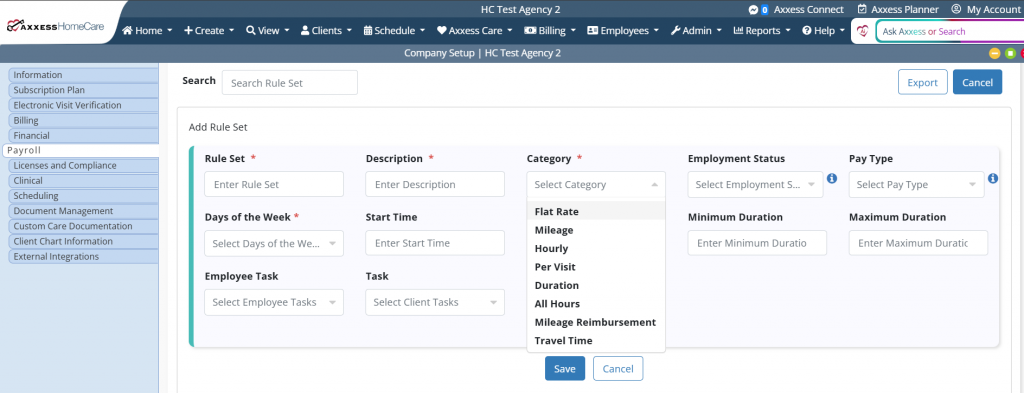
Organizations using ADP must configure pay codes and rule sets before generating payroll exports. Pay codes and rule sets determine how payroll hours, visits, mileage and earnings are mapped to the ADP export file. Proper setup ensures payroll data is categorized and exported correctly.
To give a user permission to view and export payroll lists, navigate to the employee’s profile in the Employee Center and select Permissions from the Quick Links menu. In the Administration section, expand the Payroll permissions and select the checkbox next to the Export and View List permissions.
Employees tab ➜ Employee Center ➜ Quick Links menu ➜ Permissions ➜ Administration ➜ Payroll ➜ Export ➜ View List
To give a user permission to edit Company Setup, navigate to the Agency permissions section, expand it and select the checkbox next to Edit. Select Save to finish granting permissions to the user.
Agency ➜ Edit ➜ Save
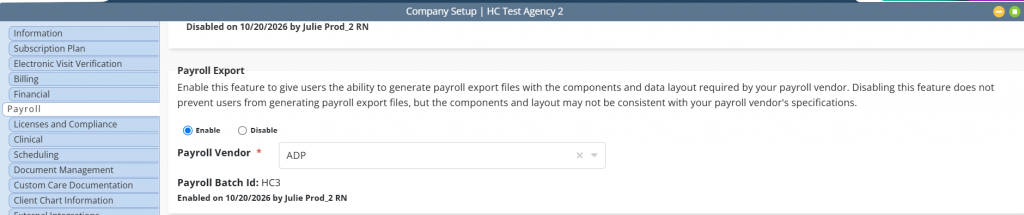
To select ADP as your payroll vendor, navigate to Company Setup under the Admin tab and select Payroll. In the Payroll Export section, select ADP from the Payroll Vendor drop-down menu.
Admin tab ➜ Company Setup ➜ Payroll tab ➜ Payroll Export section ➜ Payroll Vendor ➜ ADP
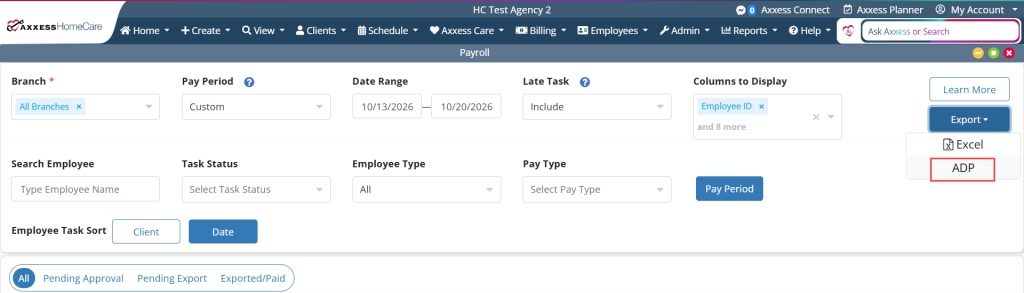
Once ADP is selected as the payroll vendor and pay codes and rule sets are configured, navigate to the Employees tab and select Payroll from the drop-down menu. Select the appropriate payroll filters. Once complete, select ADP from the Export drop-down menu.
Employees tab ➜ Payroll ➜ Export ➜ ADP
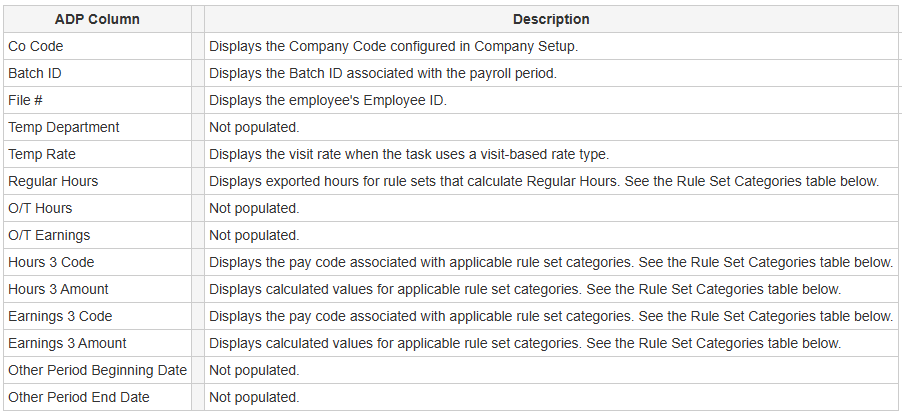
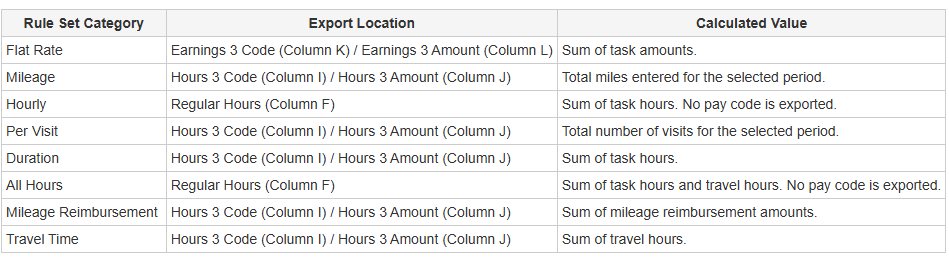
Axxess Home Care generates the ADP payroll export file using ADP’s required format. The table below describes the data included in each export column.
Rule set categories determine how payroll data is calculated and where it appears in the ADP export file.
Updated on 10/28/2026