The messaging feature in the Axxess Family Portal mobile app enables clients and authorized family members to securely communicate with organization staff about client-related questions and requests. Messages are organized in one location, making it easy to track conversations and receive responses from the appropriate team directly within the mobile app.
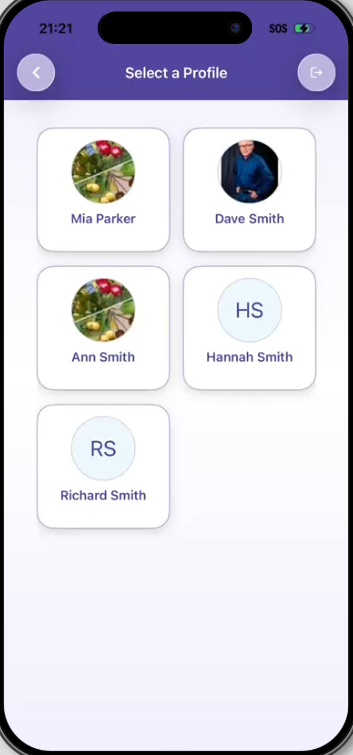
All authorized contacts associated with a client can view, send, and receive messages in Family Portal. To begin, log in to the Family Portal mobile app and navigate to the Select a Profile screen, here, tap the appropriate client profile.
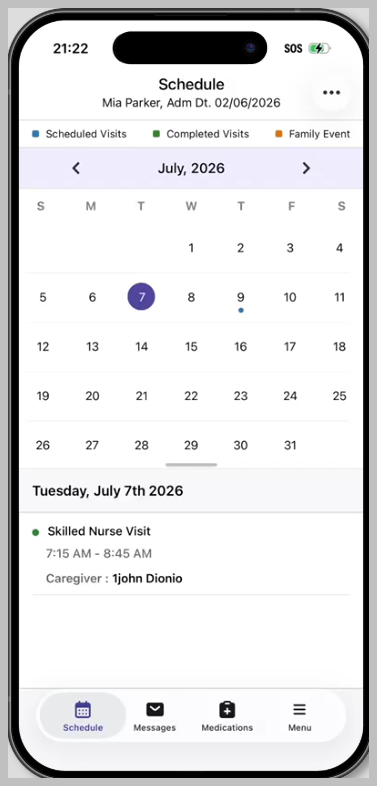
By default, once a client is selected, the Schedule screen opens.
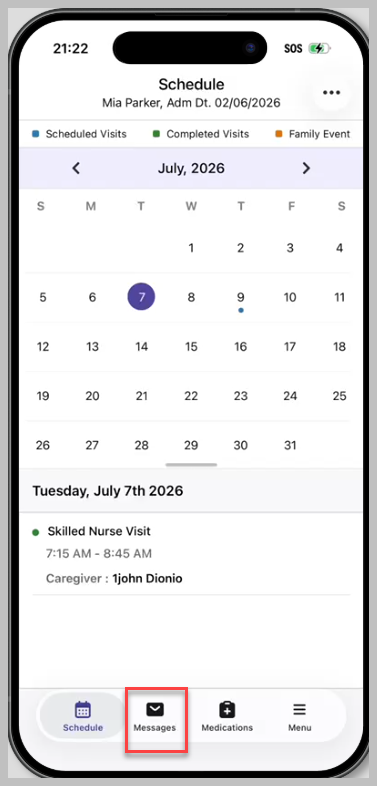
Tap Messages at the bottom navigation bar.
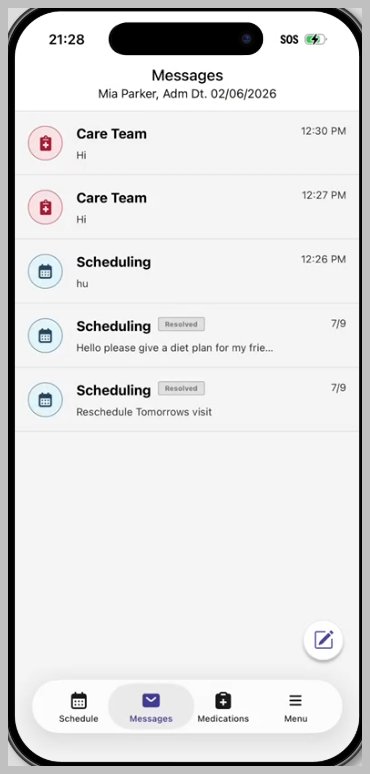
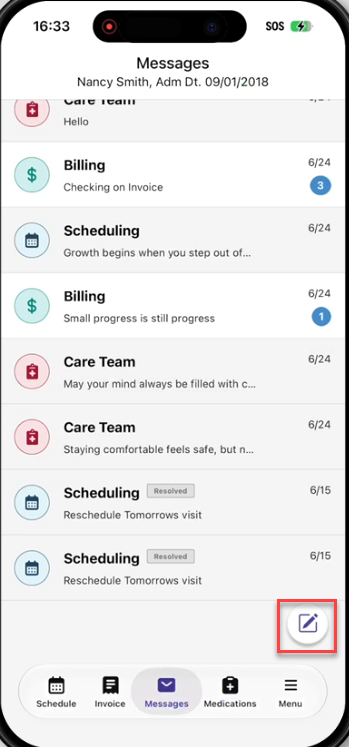
The Messages screen displays the patient name, admission date, any existing conversations and the compose icon.
To start a new conversation, tap the compose icon. Enter the required fields. In the To field, select the category that best matches the inquiry. Messages are then routed to the appropriate team based on the selected category.
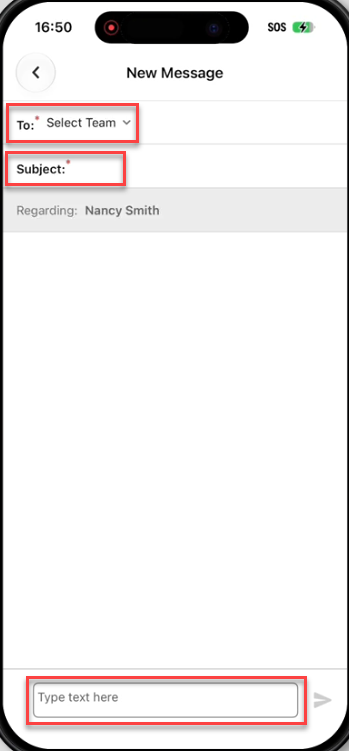
Once all the required fields are completed, tap the send icon to send the message. After the message is sent, it’s routed to the team responsible for the selected inquiry category. Staff assigned to that category can review and respond to the message, enabling patients and family members to communicate directly with the appropriate team.
The conversation list displays the message category, preview and date, as well as any unread messages displayed in bold. The most recent messages appear at the top of the list.
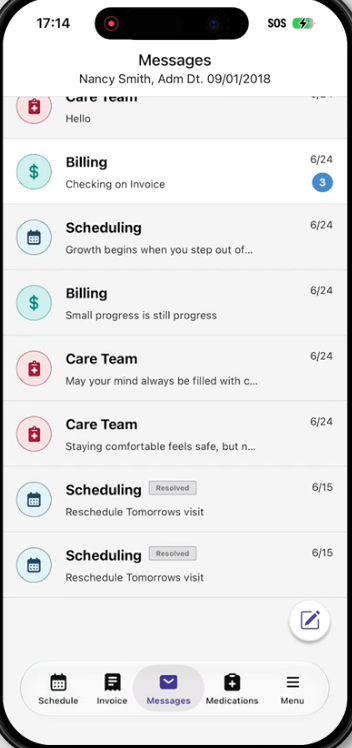
When organization staff send a new message, the unread message count on the messages icon automatically updates to reflect the new communication. Tap the messages icon to open the Messages screen and review unread messages.
To reply to a message, tap on the desired conversation in the conversation list, enter the response and tap the send icon.