The messaging feature in the Axxess Family Portal provides clients and authorized family members with a secure way to communicate with organization staff about client-related questions and requests. Messages are organized in one location, making it easy to track conversations and receive responses from the appropriate team.
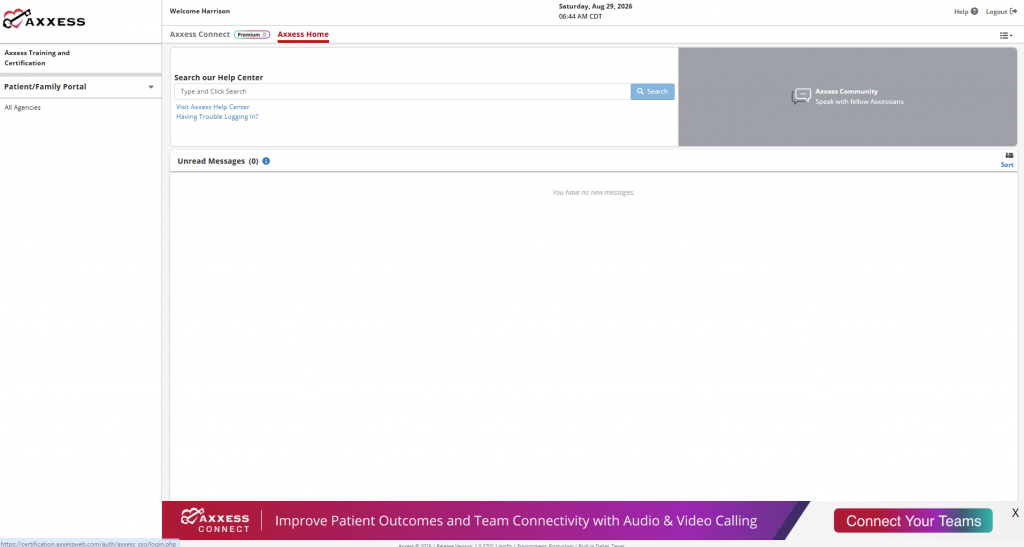
All authorized contacts associated with a patient/client can view, send, and receive messages in Family Portal. To begin, log in to the Family Portal and select All Agencies from the Patient/Family Portal drop-down menu.
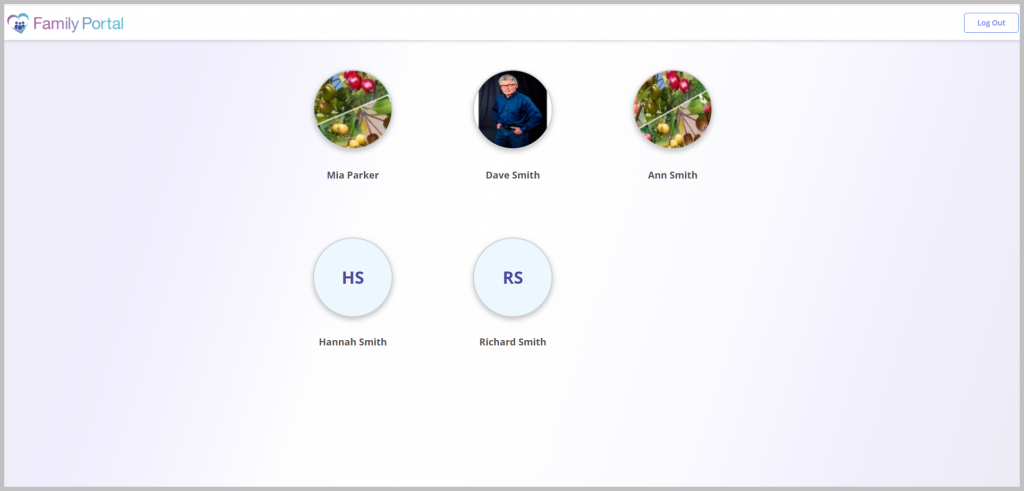
Choose the desired client from the Patient/Client Profile screen.
By default, once a client is select, the Dashboard screen opens.
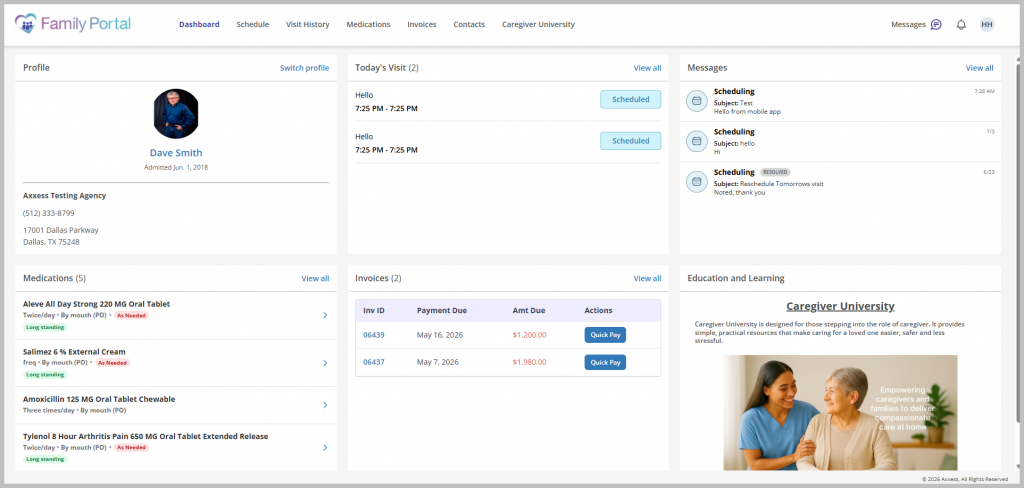
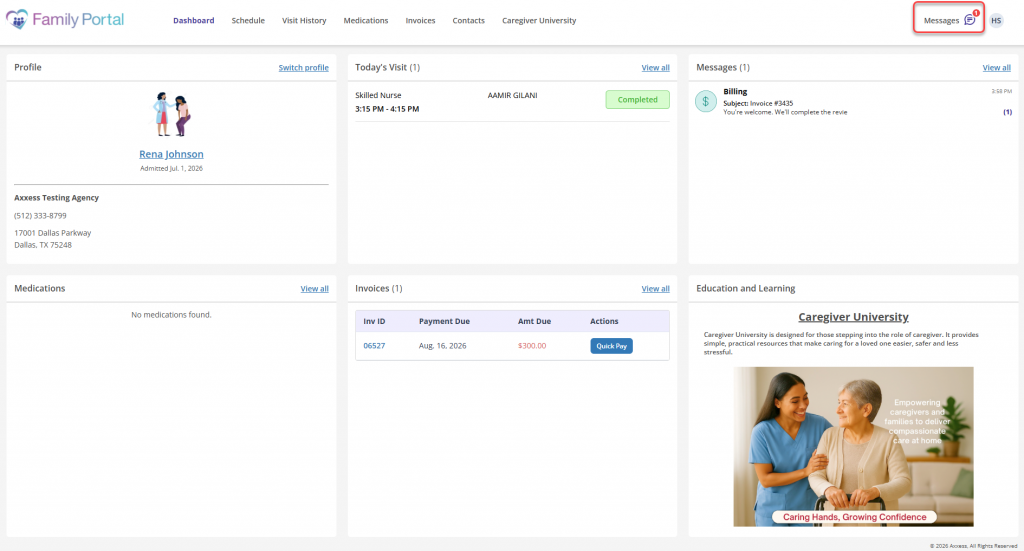
Select Messages in the upper-right corner of the screen.
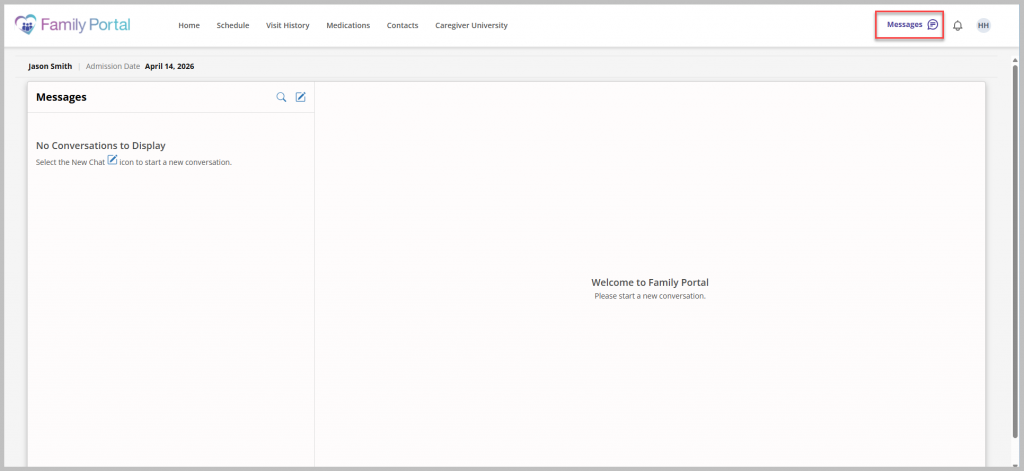
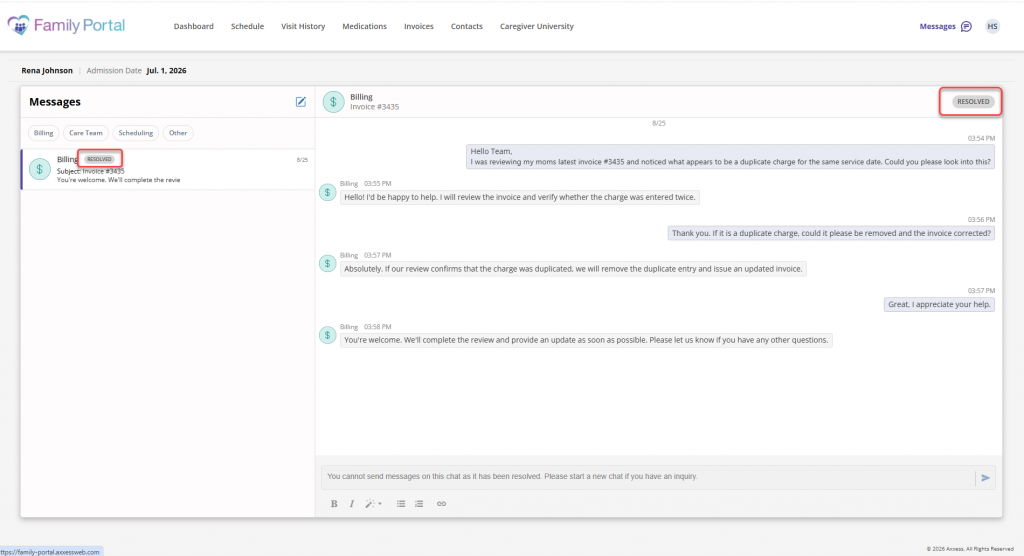
The Messages screen contains the conversation list and window, as well as the compose icon.
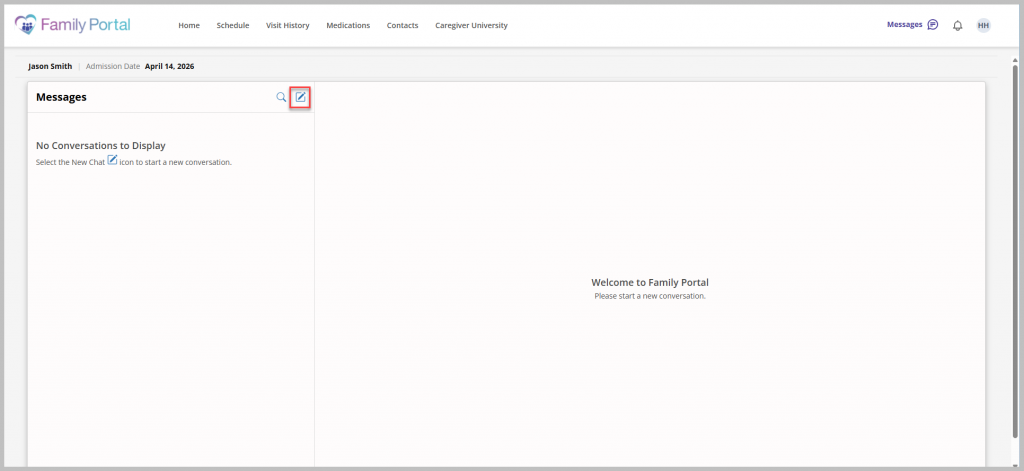
To start a new conversation, select the compose icon at the top of the screen. Enter the required fields. In the To field, select the category that best matches the inquiry. Messages are then routed to the appropriate team based on the selected category.
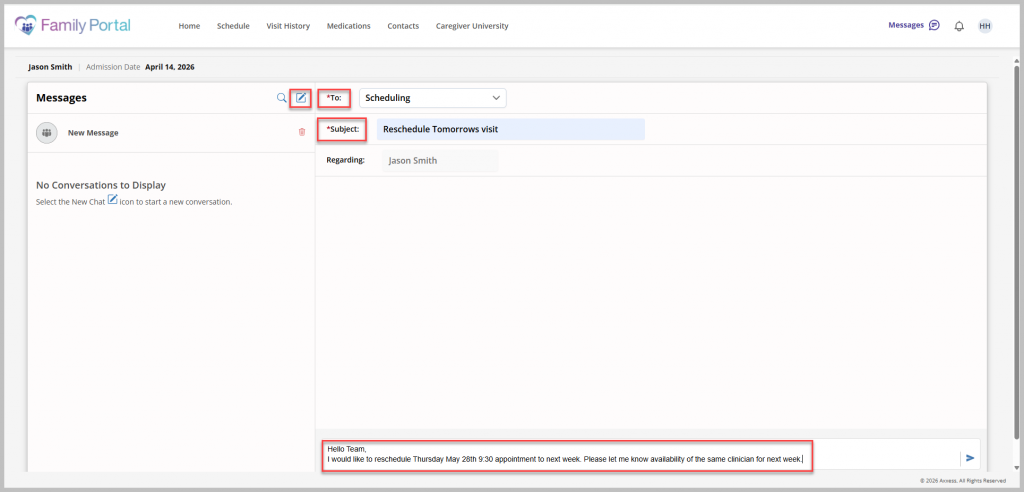
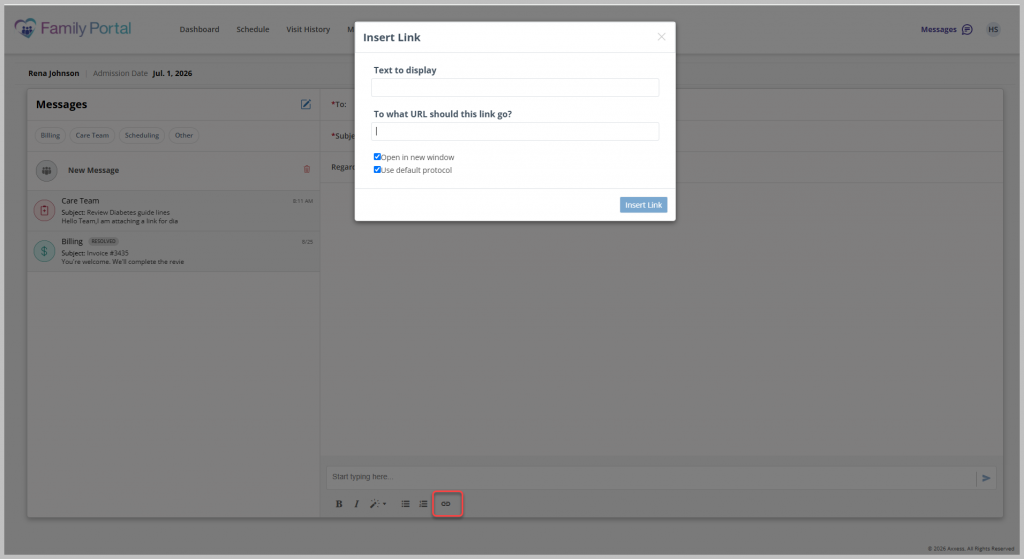
Users can customize messages with rich-text formatting tools, including bold and italic text, numbered and bulleted lists, headings and links to websites or other resources.
Once all the required fields are completed, select the send icon to send the message.
The conversation list displays the message category, preview and date, as well as any unread messages displayed in bold. The most recent messages appear at the top of the list.
When a conversation is selected, the window displays the message category, subject, date and time.
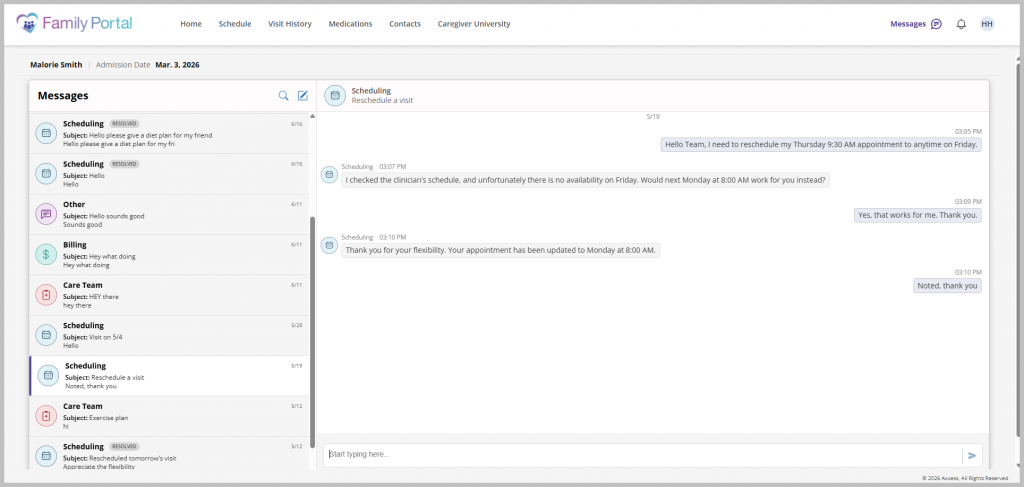
To reply to a message, select the desired conversation, enter the response message and click the send icon.
When organization staff send a new message, the unread message count on the messages icon in the Family Portal dashboard automatically updates to reflect the new communication. Select the messages icon to open the Messages page and review unread messages.
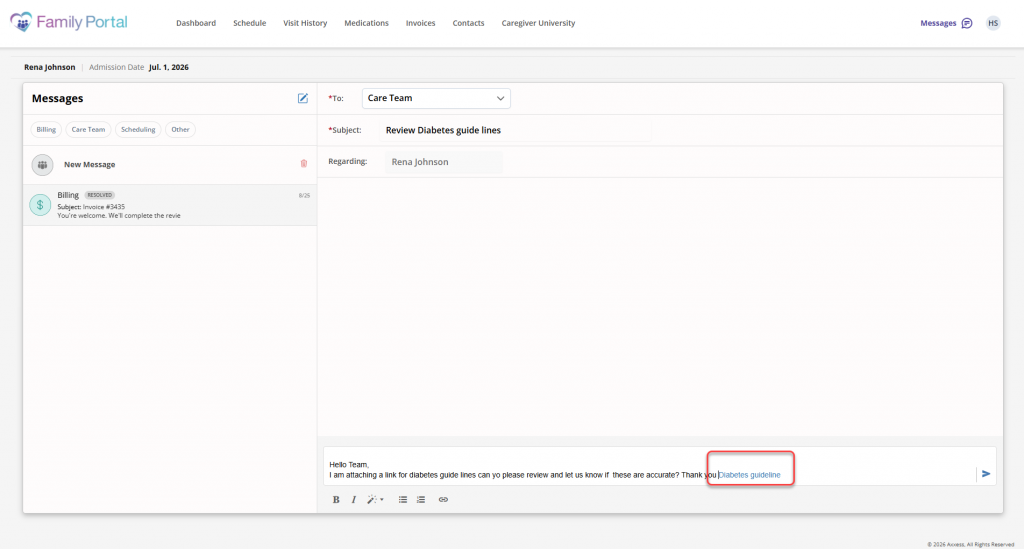
Insert a hyperlink into your message by selecting the link icon and entering a website address. Links can be used to share relevant websites, documents or resources with organization staff.
Organization staff can mark a conversation as Resolved once the topic or request has been addressed. The resolved indicator will appear next to the conversation, helping users quickly identify completed conversations. After a conversation is marked as Resolved, additional replies cannot be sent within that conversation. The message box and send functionality are disabled.