x
Join our new Axxess User Community to connect, share, learn and grow together.Learn More
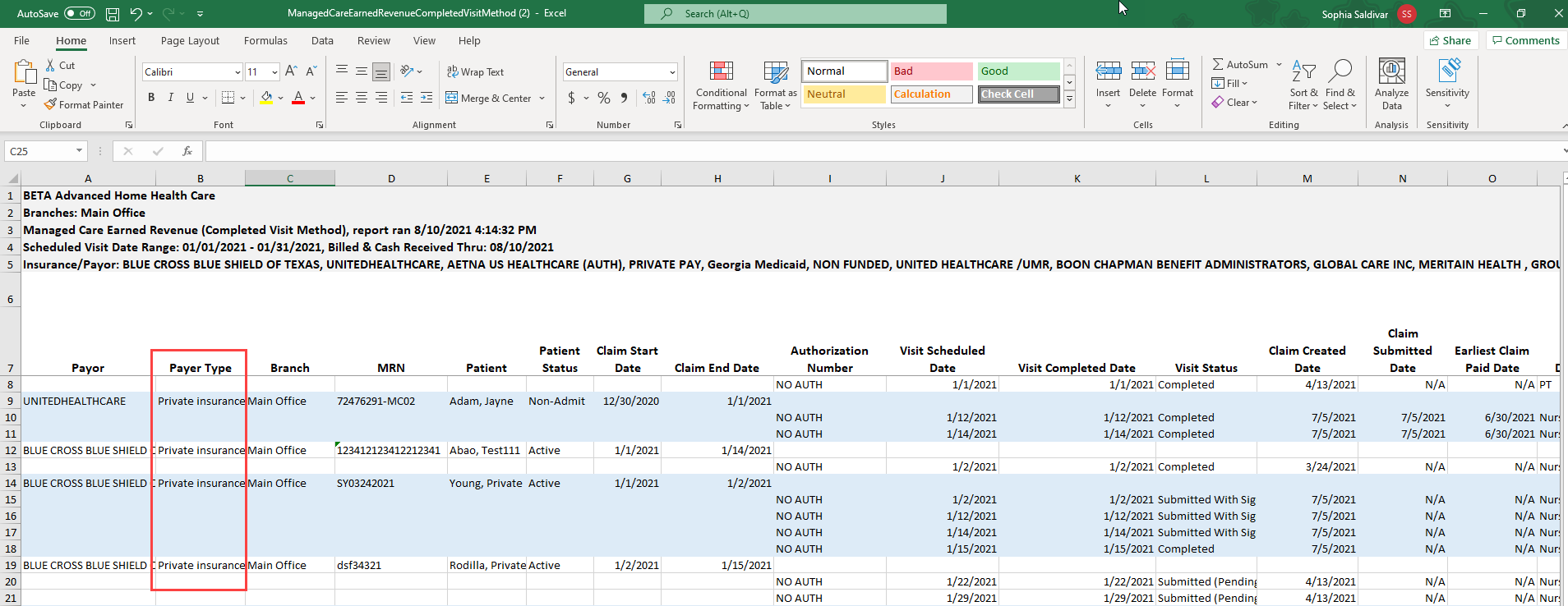
The Managed Care Earned Revenue report in Axxess Home Health now includes a Payer Type column that enables users to easily identify the source of payments.
To access the Managed Care Earned Revenue report, users must have permission to access billing/financial reports in Axxess Home Health.
To access the Managed Care Earned Revenue report, navigate to the Report Center under the Reports tab. In the Billing/Financial Reports section, select Managed Care Earned Revenue (Completed Visit Method).
Reports tab ➜ Report Center ➜ Billing/Financial Reports ➜ Managed Care Earned Revenue (Completed Visit Method)
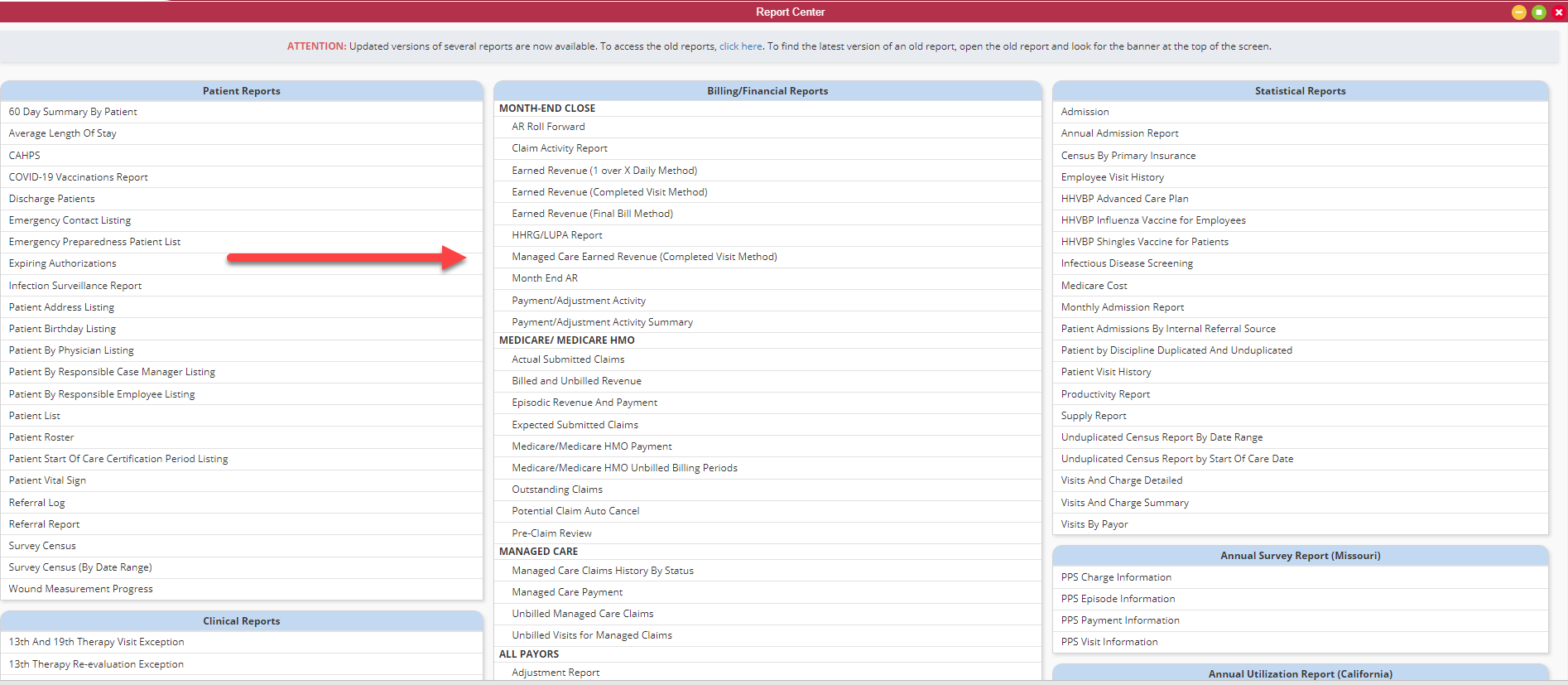
At the top of the report screen, select the desired parameters and click Request Report. You will be notified when the report has finished generating.

When the report has finished generating, navigate to Completed Reports under the Reports tab and click the report name.
Reports tab ➜ Completed Reports
The report will download in an Excel format that can be opened by the user at any time. The new Payer Type column appears in column B, directly after the payer.
To access the report through Company Setup, navigate to the Admin tab and select Company Setup. On the Financial tab, navigate to the General Ledger Report section. Select the desired parameters and click Request Report.
Admin tab ➜ Company Setup ➜ Financial tab ➜ General Ledger Report ➜ Request Report
You will be notified when the report has finished generating. To access the report, navigate to Completed Reports under the Reports tab and click the report name. The report will download in an Excel format that can be opened by the user at any time.
Reports tab ➜ Completed Reports
Updated on 09/01/2021