The following functionality is coming soon to Axxess Home Care. Axxess will alert you when this feature is available. Check your messages in Axxess Home Care for important alerts from Axxess.
Organizations in Missouri using Axxess Home Care with Sandata as their EVV aggregator can now add task IDs to all EVV visits associated with the Division of Senior and Disability Services (DSDS) program. This enhancement ensures compliance with Missouri Sandata task ID requirements, preventing claim delays and rework associated with incomplete files.
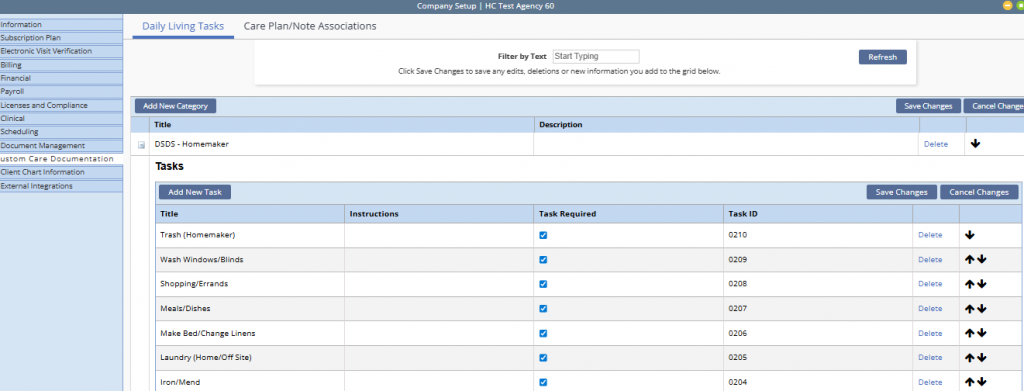
To set up tasks, navigate to the Admin tab and select Company Setup from the drop-down menu. Once selected, navigate to the Custom Care Documentation tab and select Daily Living Tasks.
Admin tab ➜ Company Setup ➜ Custom Care Documentation tab ➜ Daily Living Tasks
Once on the screen, locate and expand the applicable title to view and add tasks.
When Sandata is enabled in company setup, the Task Required and Task ID columns will be visible in the Tasks table. To indicate that a task is required, select the checkbox next to the desired task. To indicate the Task ID, refer to Appendix 4: Tasks, here.
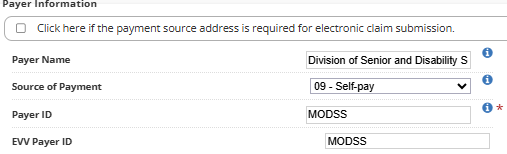
To set up the payer, enter the EVV Payer ID in the field.
Next, ensure that the correct bill rates have been added to the custom visit note.

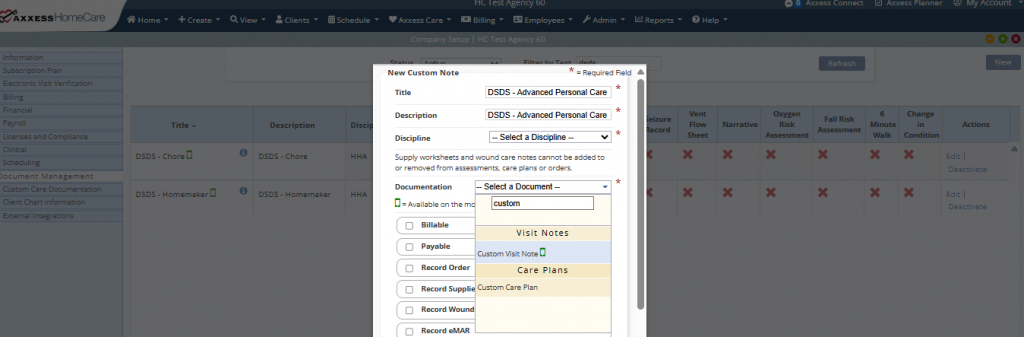
To add a custom care plan and note, navigate to Company Setup under the Admin tab and select the Document Management tab. Once on the screen, select New. On the New Custom Note screen, search Custom Visit Note and Custom Care Plan in the Documentation field. Select Save to complete.
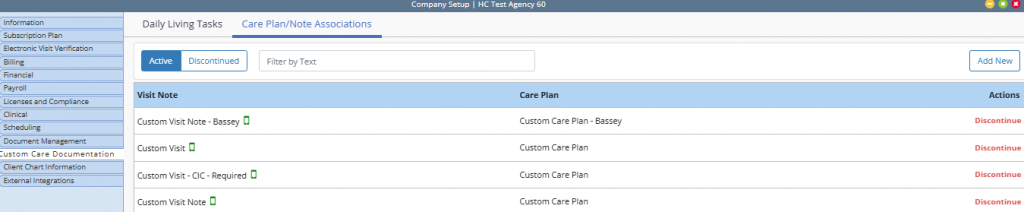
The custom care plan and custom visit note must be associated so the information for the client’s care plan flows accurately to the associated note. To associate the custom care plan and note, navigate to Company Setup under the Admin tab and select the Custom Care Documentation tab. Once on the screen, select the Care Plan/Note Associations tab and click New to associate the care plan to the note.
Admin tab ➜ Company Setup ➜ Custom Care Documentation tab ➜ Care Plan/Note Associations ➜ New
Once complete, select Save & Close or Save & Add Another to save.

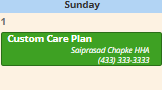
Once saved, the custom care plan can be scheduled. Schedule the custom care plan and select any applicable tasks.
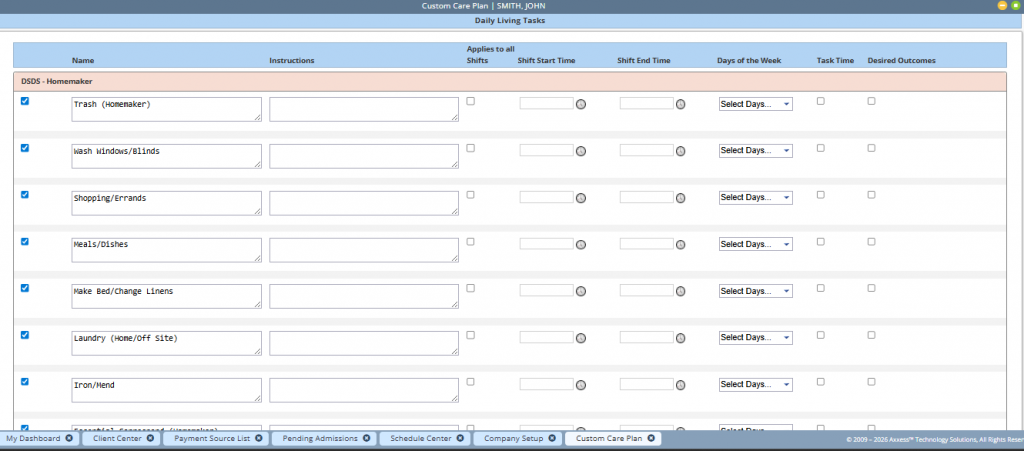
Indicate whether the task applies to all shifts or if there is a certain shift timeframe to complete the task. Please note, if a specific shift timeframe is indicated, the task will only flow to the note scheduled during that time.
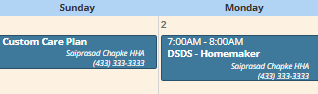
Once the custom care plan is complete, the associated custom visit notes can be scheduled. Please note, only the tasks selected on the care plan will flow to the note.
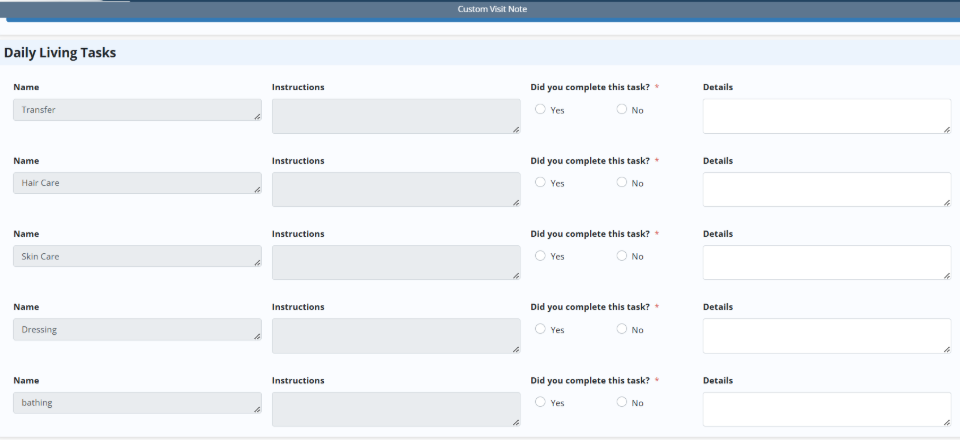
When opening and scheduling the note, the user must indicate whether or not they completed the task. If the answer is no, they will need to address why it wasn’t completed in the Details field.
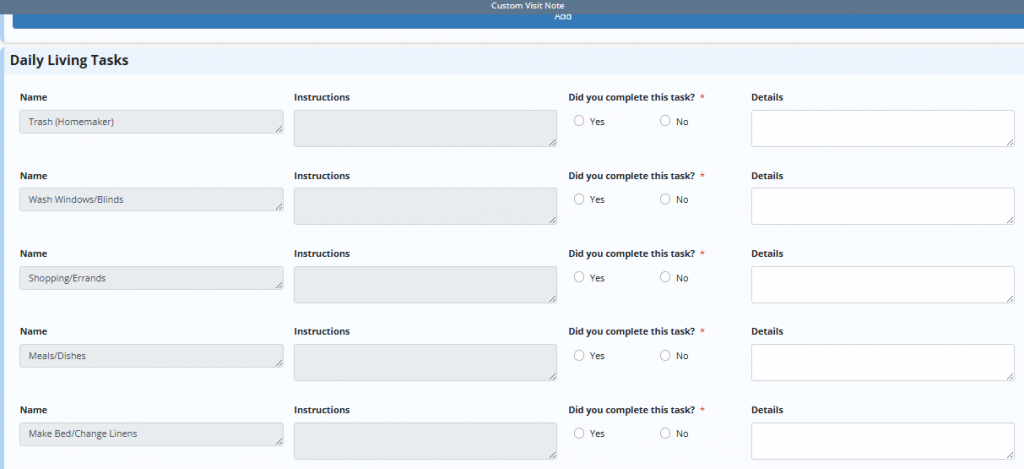
Once a custom visit note with daily living tasks is completed, the task ID that is linked to the task will be submitted with the EVV data elements.