The following functionality is coming soon to Axxess Home Care. Axxess will alert you when this feature is available. Check your messages in Axxess Home Care for important alerts from Axxess.
Axxess Home Care now enables users to select ADP as a payroll vendor and create pay codes and rule sets in Company Setup. This enhancement streamlines payroll operations by ensuring accurate data flows into the ADP file, enabling organizations to properly map and manage employee pay.
To add ADP as a payroll vendor and create pay codes and rule sets, users must have permission to view and export payroll lists, as well as edit Company Setup in Axxess Home Care.
To give a user permission to view and export payroll lists, navigate to the employee’s profile in the Employee Center and select Permissions from the Quick Links menu. In the Administration section, expand the Payroll permissions and select the checkbox next to the Export and View List permissions.
Employees tab ➜ Employee Center ➜ Quick Links menu ➜ Permissions ➜ Administration ➜ Payroll ➜ Export ➜ View List
To give a user permission to edit Company Setup, navigate to the Agency permissions section, expand it and select the checkbox next to Edit. Select Save to finish granting permissions to the user.
Agency ➜ Edit ➜ Save
To select ADP as the payroll vendor, navigate to Company Setup under the Admin tab and select Payroll. In the Payroll Export section, select ADP from the Payroll Vendor drop-down menu.
Admin tab ➜ Company Setup ➜ Payroll ➜ Payroll Export section ➜ Payroll Vendor ➜ ADP

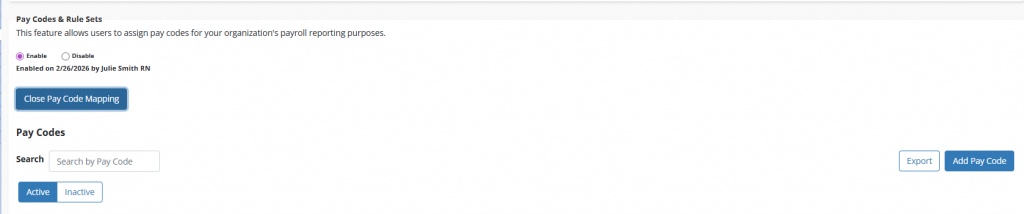
To create pay codes, navigate to the Pay Codes and Rule Sets section under Payroll and select Enable.
Admin tab ➜ Company Setup ➜ Payroll ➜ Pay Codes and Rule Sets ➜ Enable
Once enabled, the View Code Mapping button will be displayed. Note: If Disable is selected and ADP is not listed as the vendor, this button will not be displayed.
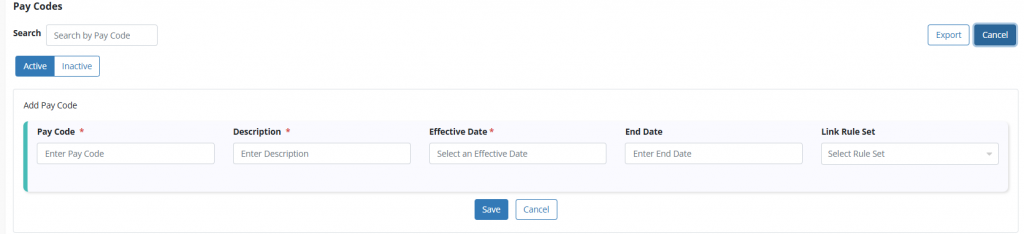
When View Pay Code Mapping is selected, the Pay Code screen will appear. Select Add Pay Code to add a pay code.
Enter the required information and select Save.
Once saved, the pay code will be added to the Pay Code table. To update added pay codes, navigate to the Actions column and select Update.
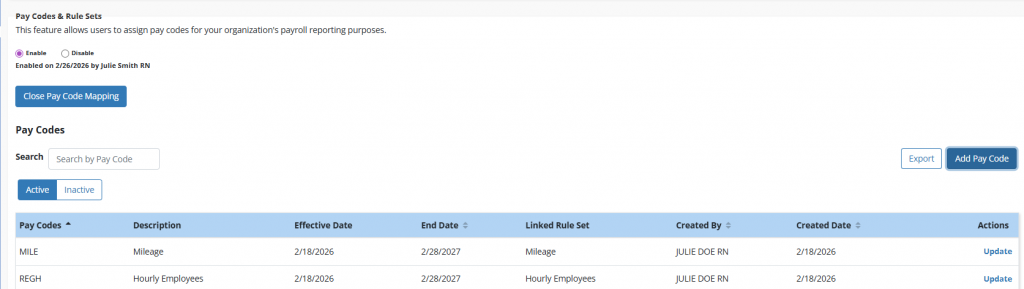
Once the pay code steps are complete, navigate to the Rule Sets section to create a rule set.
Once within the section, select Add Rule Set.

Enter the required information and select Save.
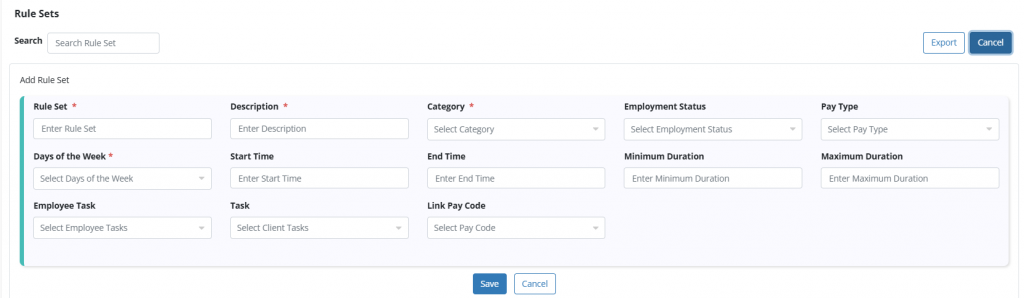
Once save, the rule set will be added to the Rule Sets table and linked to the chosen pay code. To update the rule set, select Edit under the Actions column.