Mosai streamlines document management and simplifies care coordination for providers across the continuum. Its direct integration with Axxess Home Care helps organizations reduce administrative expenses, optimize revenue cycle management and improve client outcomes.
Reduce Administrative Expenses
|
Enable cross-functional teams to collaborate and manage workflow through one cloud-based, integrated platform |
|
|
One full-time employee (FTE) can accurately manage documentation for 800 clients |
|
|
Eliminate hard costs such as paper, ink, printing, postage, faxing and storage |
Optimize Revenue Cycle Management
|
Reduce patient onboarding time by as much as 50% |
|
|
Capture more reimbursable conditions at the start of care |
|
|
96% of documents returned and signed in 30 days |
Improve Client Outcomes
|
Coordinate care among remote and multidisciplinary care teams with 24/7, HIPAA-secure, real-time communication |
|
|
Extend and scale clinical expertise from the office to the field with one app to support both office and clinical staff |
Mosai’s referral automation identifies referrals as they come in for easy processing and attachment in Axxess. Client and physician data are synced from Axxess to Mosai, so referrals can be processed faster and clients can be onboarded sooner. Orders can automatically be sent to physicians from Axxess, giving users transparency into what is outstanding and which providers hold the oldest or highest volumes of claims.
Once an organization enables the Mosai integration, approved orders can automatically be sent from Axxess Home Care to Mosai to be faxed for physician signatures, signed and returned to the Axxess Home Care solution. The Mosai integration streamlines document tracking and enables users to attach returned orders directly to their corresponding Axxess client records.
To activate the Mosai integration, Axxess Home Care clients should contact sales@forcura.com and integrations@axxess.com to set up agreements with each software vendor for the integration.
Clients will then need to submit a request to enable the Mosai integration in Axxess Home Care. To submit a request to enable the Mosai integration, navigate to Company Setup under the Admin tab in Axxess Home Care. On the Integrations tab, navigate to the Orders/Document Management section and click Enable under Mosai. Make the preferred selections and click Submit Request.
Admin tab ➜ Company Setup ➜ Integrations tab ➜ Orders/Document Management section ➜ Mosai ➜ Enable ➜ Submit Request
|
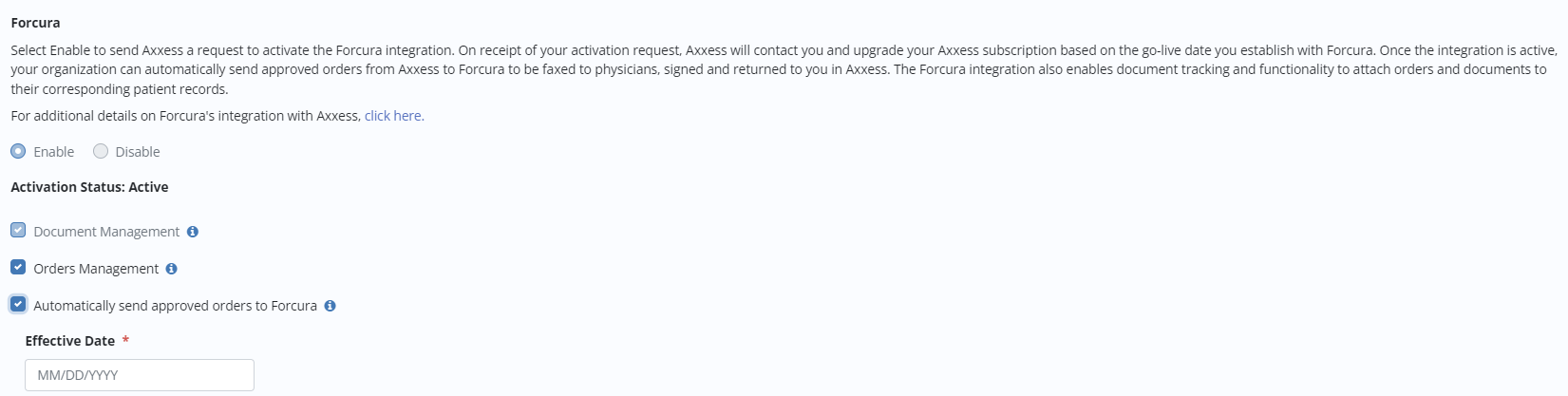
The Document Management functionality is automatically activated when the Mosai integration is enabled. This item enables documents that flow in from Mosai to be attached to patient charts in Axxess. |
|
|
The organization can choose to enable the Orders Management feature by checking the box next to Orders Management. This feature enables users to electronically send approved orders from the Orders To Be Sent screen to Mosai for managing and tracking in the Mosai application. |
|
|
The organization can choose to automatically send approved orders by checking the box next to Automatically send approved orders to Mosai. If this setting is not selected, the organization manually sends approved orders to Mosai through the Orders To Be Sent screen under View ➜ Orders Management. If this box is selected, orders that have been approved in the Quality Assurance Center (or set to bypass QA) will be automatically sent to Mosai for managing and tracking. |
|
|
The organization can choose to enable the Orders Management feature by checking the box next to Orders Management. This feature enables users to electronically send approved orders from the Orders To Be Sent screen to Forcura for managing and tracking in the Mosai application. |
|
|
The Effective Date is auto-filled on the day Automatically send approved orders to Mosai is selected and saved. |
When an administrative user selects Enable ➜ Submit Request under the Mosai integration in Company Setup, Axxess receives an activation request. On receipt of the request, Axxess contacts the organization to discuss and identify a go-live date.
The established go-live date displays in the Enabled On field in Company Setup, and the integration is activated and added to the organization’s Axxess subscription based on the date.
When Mosai is enabled, a predefined list of document types populates in the Documents list.
Admin tab ➜ Lists ➜ Documents
The predefined list includes standard Mosai document types for indexing purposes. If a user attempts to edit or delete one of these document types using the buttons under Actions, the system will trigger the following message and prevent editing/deletion: This document type is associated with an active interface and cannot be edited or deleted.
Managing Client Documents:
When a document is indexed from Mosai, the document attaches to the Documents tab in the client’s chart.
Select the Documents tab at the top of a client’s chart to navigate to the Documents screen.
Clients tab ➜ Client Center ➜ Documents tab
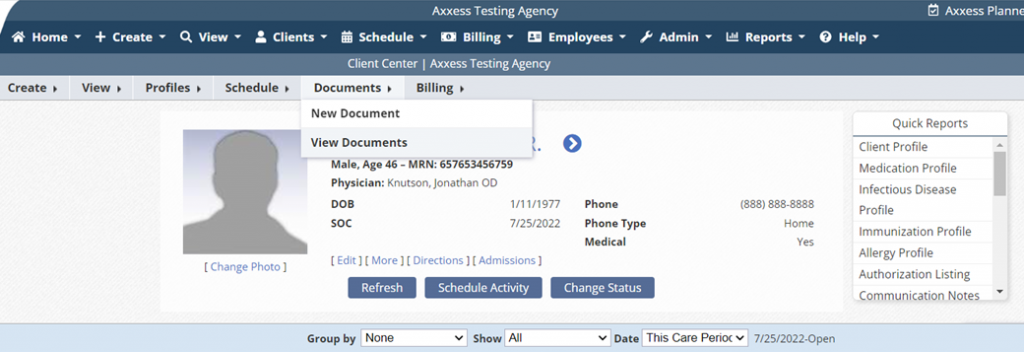
On the Documents screen, the Attached By column enables users to identify documents attached by Mosai.

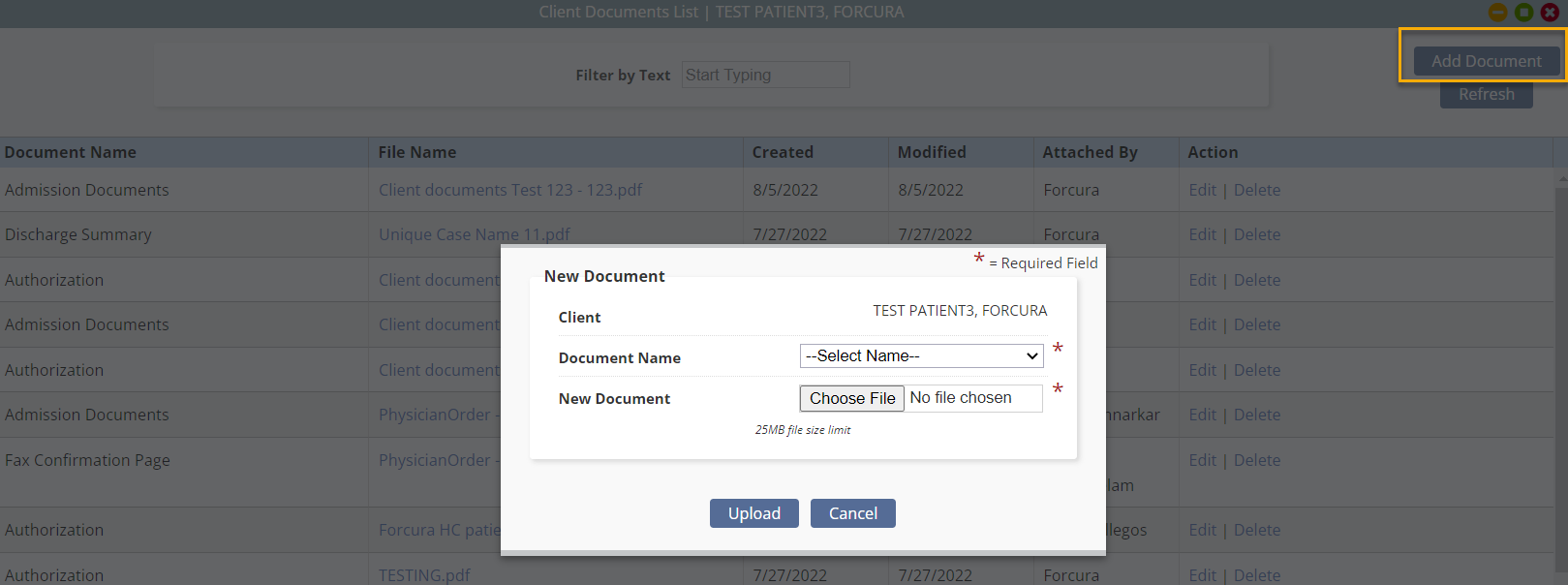
To add a new document, click Add Document in the top-right corner of the Documents screen. In the New Document window, select the name of the document from the Document Name field and click Choose File to upload a file from your device. Click Upload to finish uploading the document.
When adding, editing or deleting client profile information in Axxess, the client profile information in Mosai will automatically update to ensure consistency and accuracy.
Accessing Orders To Be Sent:
Once orders are generated and ready to be sent for physician signatures, they appear on the Orders To Be Sent screen.
View tab ➜ Orders Management ➜ Orders To Be Sent
A Delivery Method filter appears on the Orders To Be Sent screen to optimize orders management processes. The Delivery Method column enables users to identify orders that are set to go to Mosai. When the Mosai integration is enabled, all orders will be sent to Mosai, unless Axxess Physician Portal is selected in the Delivery Method field.
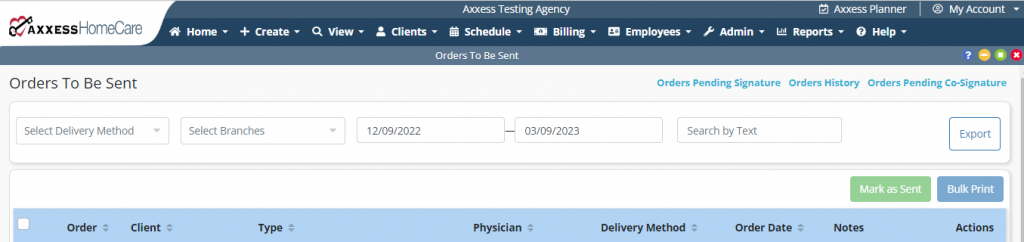
When Mosai is enabled and a delivery method is not selected, the box in the far-left column will be grayed out. When the user hovers over the box, a message will inform the user that an order delivery method is required to send an order.
The user can click the hyperlinked physician’s name in the Physician column and select an order delivery method on the Edit Physician screen to enable sending, or follow the steps below.
Adding a Physician’s Order Delivery Method:
To identify a physician’s order delivery method, navigate to the Edit Physician screen under the View or Admin tab.
View tab ➜ Lists ➜ Physicians ➜ Edit ➜ Order Delivery Method
Admin tab ➜ Lists ➜ Physicians ➜ Edit ➜ Order Delivery Method
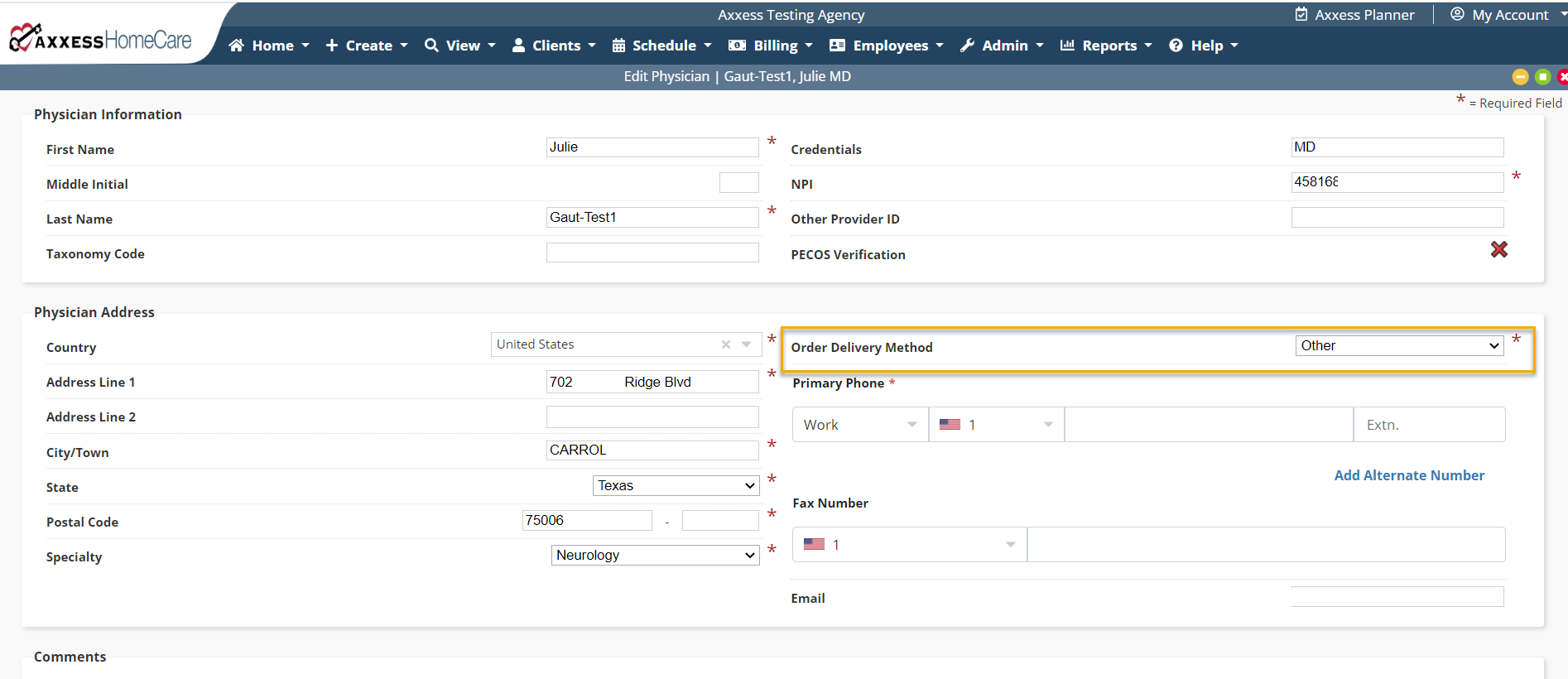
Users should select Axxess Physician Portal in the Order Delivery Method field for physicians who sign orders electronically through the Axxess Physician Portal. If this option is selected, a valid physician’s email address must be provided. Physicians should regularly monitor the portal to minimize delays in signed orders.
When Mail or Fax is selected without the Mosai integration enabled, users will be required to manually download the PDF files and fax or mail items to physicians for signature. The Orders To Be Sent screen will help users select orders and mark items as sent using the Send button in the top-right corner of the screen.
When the Mosai integration is enabled, all orders with Mail, Fax, Courier or Electronic selected in the Delivery Method field will be sent to Mosai to collect physician signatures via mail, electronic fax, courier or the Mosai Circle portal. Administrators should make sure the most up-to-date physician mailing addresses and fax numbers are saved on the Edit Physician screen.
If an organization has subscribed to the integration and the signing physician prefers to use the Mosai Portal to receive and sign orders, the user must update the physician’s profile with Electronic selected under Order Delivery Method and Mosai Circle selected under Vendor.
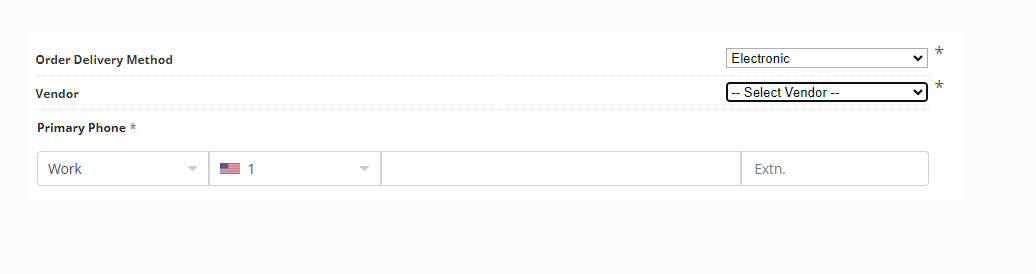
When adding, editing or deleting physician profile information in Axxess, the physician profile information in Mosai will automatically update to ensure consistency and accuracy.
Viewing and Receiving Orders Pending Physician Signature:
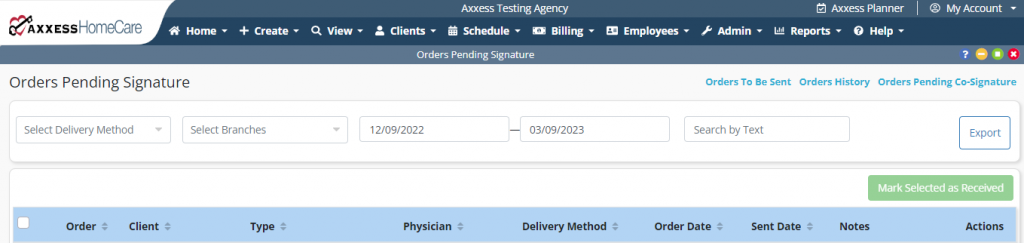
To view orders pending signatures, navigate to the View tab, hover over Orders Management and select Orders Pending Signature.
View tab ➜ Orders Management ➜ Orders Pending Signature
Columns on the Orders Pending Signature screen indicate age and delivery method.
Order Date – Order creation date
Delivery Method – Order delivery method set at the physician level
Viewing Orders History:
The Orders History screen enables users to track manually and electronically received orders. To view the Orders History screen, navigate to the View tab, hover over Orders Management and select Orders History.
View tab ➜ Orders Management ➜ Orders History
The Received By column on the Orders History screen displays Mosai if the order was sent through the Mosai integration or the user’s name if it was manually marked as received or received through the Axxess Physician Portal.
When an order is signed and returned from Mosai, the order attaches to the order task with a unique bar code and signature. To view an order, click the printer icon on the order task.