The following functionality is coming soon to Axxess Palliative Care. Axxess will alert you when this feature is available. Check your messages in Axxess Palliative Care for important alerts from Axxess.
Axxess Palliative Care now provides Clinical Decision Support (CDS), enabling users to identify care opportunities and recommended actions by generating alerts when patient data meets specified rule criteria. This enhancement streamlines operations, addresses care gaps, improves patient outcomes and supports more informed clinical decision-making.
To utilize Clinical Decision Support, users must have permission to view, add, edit and delete Clinical Decision Support in Axxess Palliative Care.
To give a user permission to view, add, edit and delete Clinical Decision Support, edit the user’s profile and navigate to the Permissions tab. In the Administration section, select the View, Add, Edit and Delete next to the Clinical Decision Support permission. Click Save to finish granting the permissions to the user.
People tab ➜ People Center ➜ Edit ➜ Permissions tab ➜ Administration section ➜ Clinical Decision Support ➜ View/Add/Edit/Delete ➜ Save

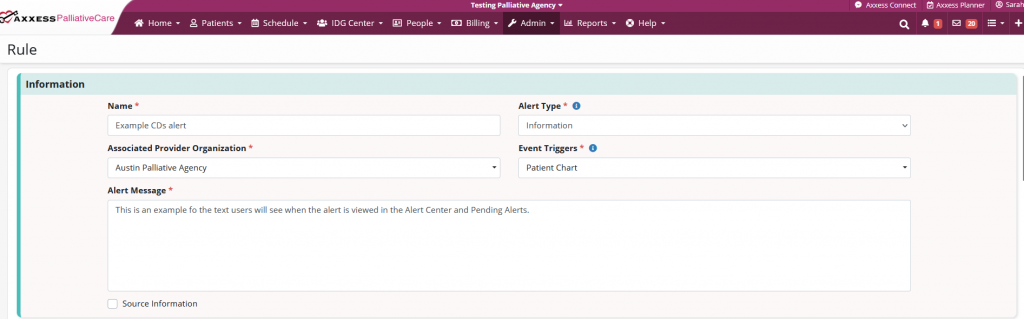
To create a Clinical Decision Support rule, navigate to the Admin tab and select Clinical Decision Support. On the Rule screen, select Add Rule. In the Information section, enter the required fields.
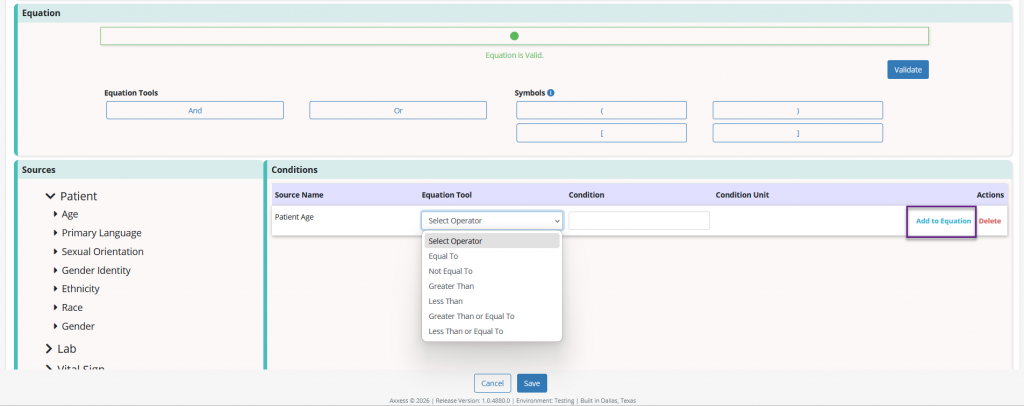
Rule criteria define the patient conditions that must be met before an alert is generated. Use one or more criteria to build a rule to identify patients who may require additional review, intervention or follow-up. When a selection is made in the Sources section, more specific sources will then be revealed. Selected sources will be displayed in the Conditions section. Once all selections have been made, select Add to Equation, which will add it to the equation module above.
The AND field requires all specified conditions to be met
The OR field requires at least one specified condition to be met
Parentheses ( ) group conditions for evaluation
Square brackets [ ] require all enclosed conditions to be met by the same item
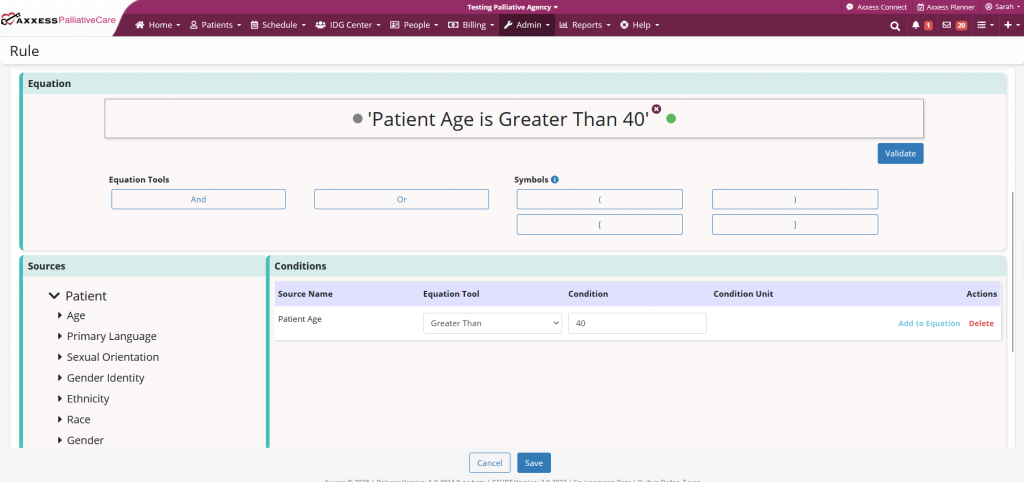
Select Validate to validate the equation.
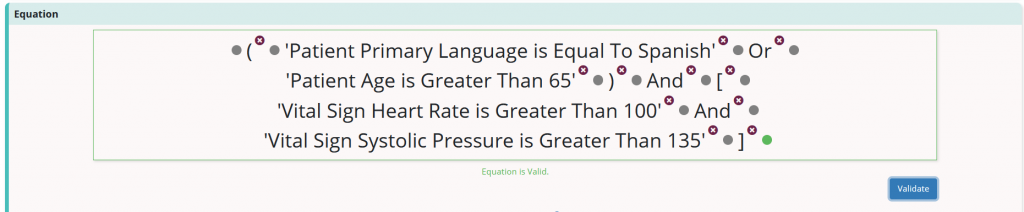
Add any necessary rule Sources or Conditions, then select Save when complete.
Once saved, rules are automatically activated. To deactivate a rule, navigate to the Rule screen, select the desired rule from the Clinical Decision Support table and select Deactivate from the Actions column.


To view inactive rules, select Inactive in the status filter. To reactivate a rule, locate the desired inactive rule and select Restore from the Actions column.
Once reactivated, the rule will generate an alert when patients meet the specified criteria and the applicable trigger action is completed.
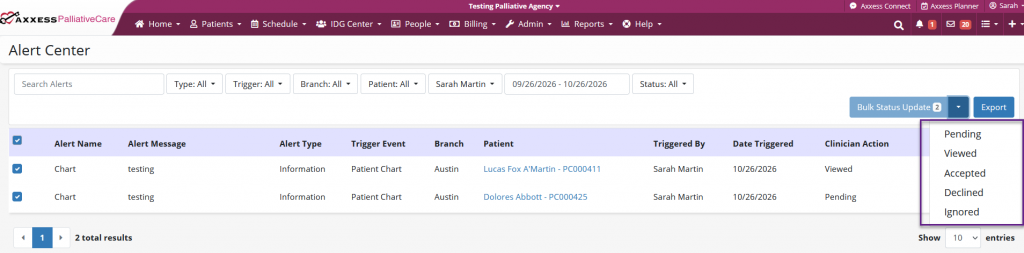
When a patient meets the criteria of an active CDS rule and the configured trigger action occurs, an alert notification appears. Users can review alerts in the patient’s chart or in the Alert Center.
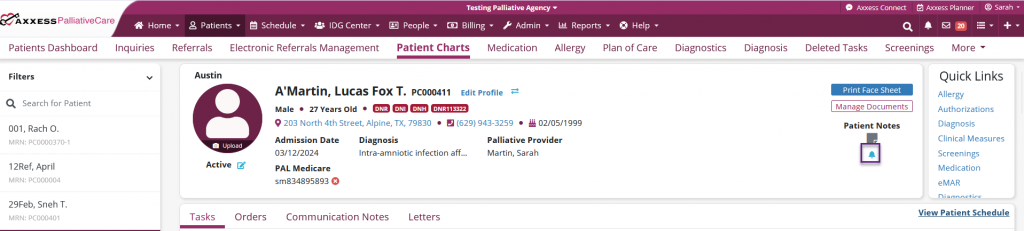
To review alerts for a specific patient, navigate to the desired patient’s chart and select the pending alerts icon on the patient card.
To review alerts for all patients, navigate to the Alert Center at the top of the screen and use the filters to locate specific alerts. The Alert Center provides a centralized location for reviewing, prioritizing and managing CDS alerts.
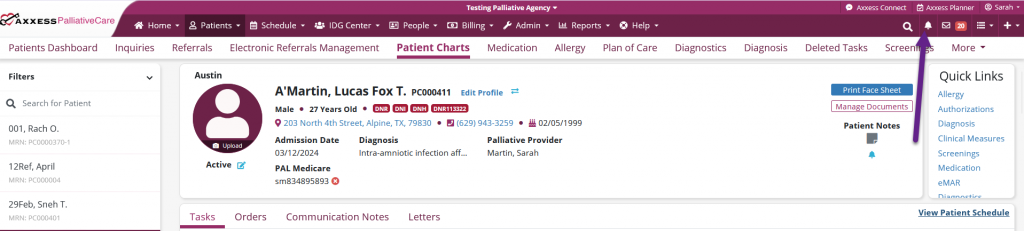
From the Alert Center users can:
Review and filter patient alerts
Update alert statuses
Manage multiple patient alerts using bulk actions
To update alerts, select the checkbox next to the desired alert or alerts. Then select the appropriate status action. Select Save to complete the changes.