Axxess Palliative Care now provides two ways to assign productivity points to different task types. Productivity points can be assigned in Company Setup and through the standardized tool from CMS called relative value units (RVUs) associated with CPT codes chosen at the end of the visit. The Productivity Report now has a column for Productivity Points and RVUs so the organization can use either method to capture productivity.
This functionality provides valuable insights into employee productivity so organizations can decrease payroll costs and streamline operations.
To assign productivity points to task types, users must have permission to view and edit Company Setup in Axxess Palliative Care.
To give a user permission to view and edit Company Setup, edit the user’s profile and navigate to the Permissions tab. In the Administration section, select View and Edit next to the Company Setup permission. Click Save to finish granting the permissions to the user.
People tab ➜ People Center ➜ Edit ➜ Permissions tab ➜ Administration section ➜ Company Setup ➜ View/Edit ➜ Save
To assign productivity points to task types, navigate to Company Setup under the Admin tab. On the Scheduling tab, navigate to the Scheduling Task List table and click the edit icon (  ) to assign points to a specific task.
Admin tab ➜ Company Setup ➜ Scheduling tab ➜ Scheduling Task List ➜
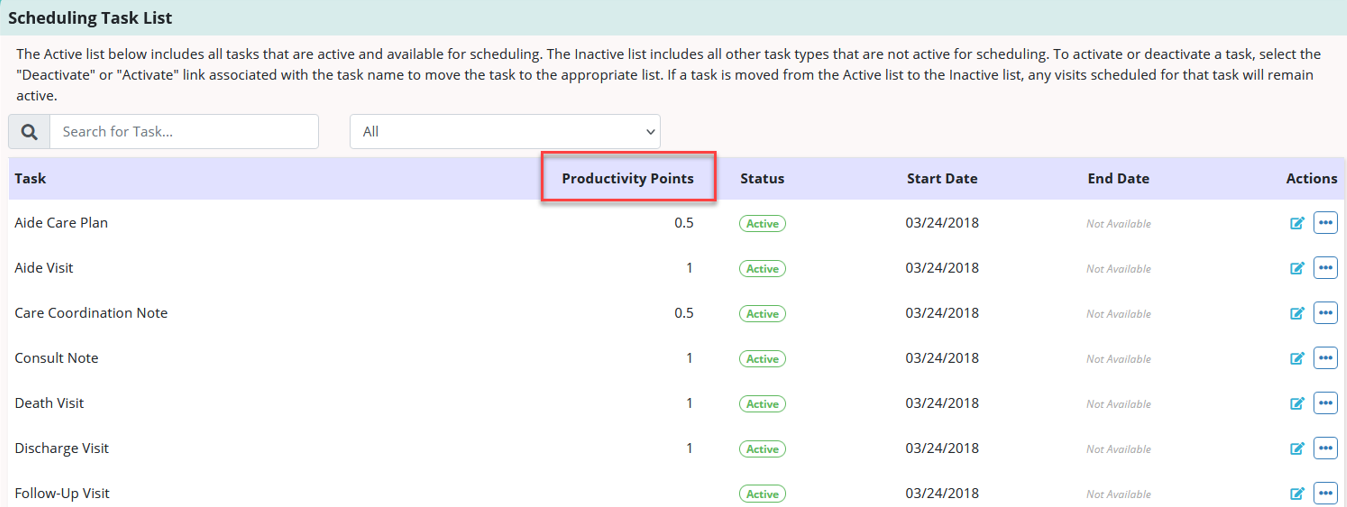
In the Productivity Points column, enter the desired number of productivity points and click Save.

Based on the points you assign to each task type, a productivity score will be generated for each clinician in the Productivity Report.
To use RVUs to measure productivity, you must activate the feature in the payer’s setup, so you must have permissions to view and edit insurance/payers.
To give a user permission to view and edit insurance/payers and authorizations, edit the user’s profile and navigate to the Permissions tab. In the Administration section, select View and Edit next to the Insurance/Payer and Authorizations permissions. Click Save to finish granting the permissions to the user.

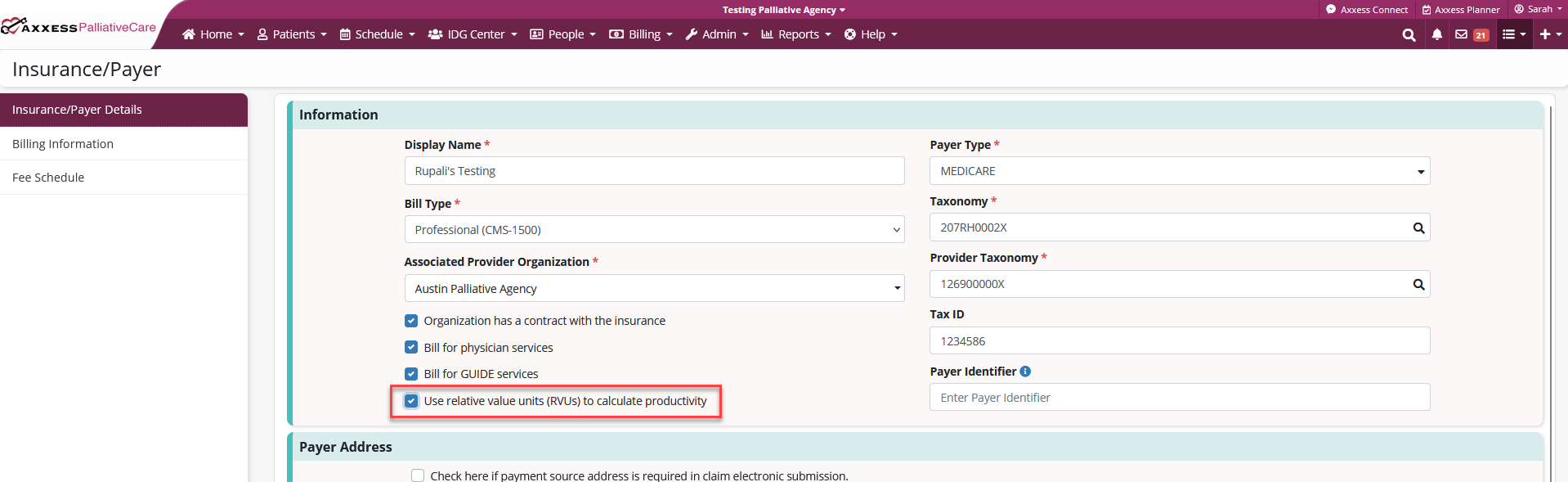
To activate the RVU feature, edit each insurance and payer by checking the “Use relative value units (RVUs) to calculate productivity” check box on the Information tab of the Insurance/Payer screen. Click Save to finish enabling this feature. This is very important. The feature will not save if Save is not selected. Once saved, you will be able to see the RVU field on the Add/Edit code screen.
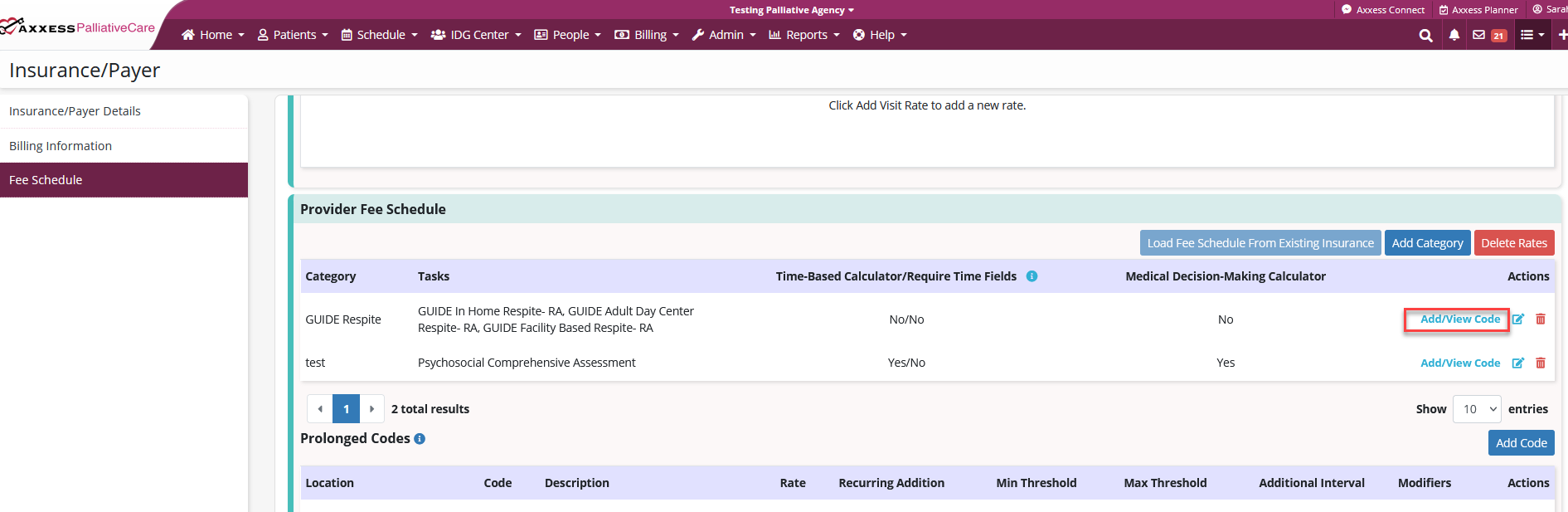
To get to the Add/Edit code screen, navigate to the Fee Schedule tab and click Add/View Code.
Edit individual codes using the edit icon under Actions or select the Add Code button to add a new code.
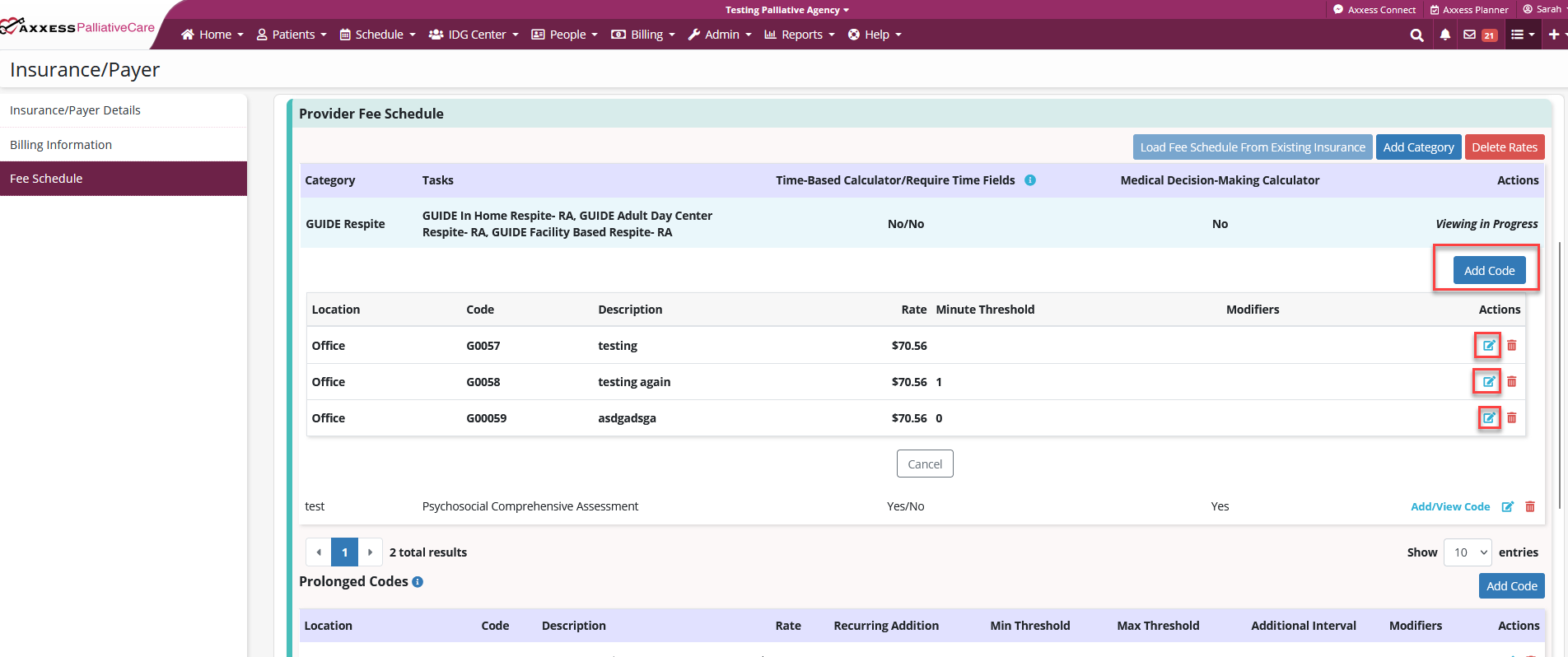
From here, you must add a locality code for the RVU to populate.
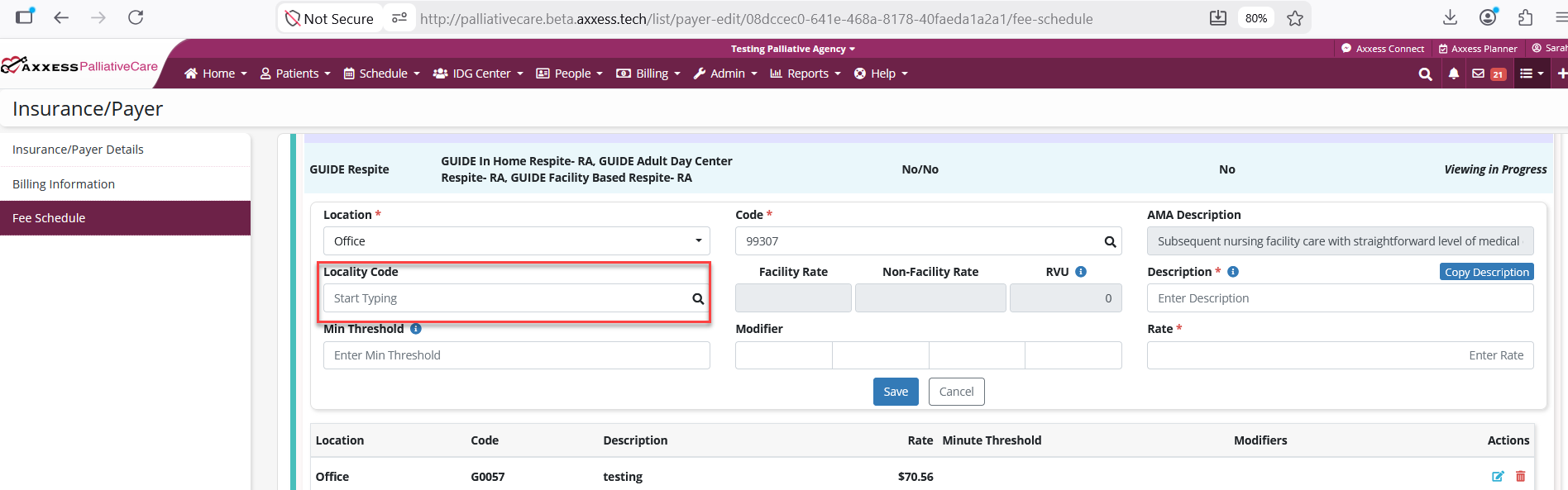
Once the RVUs are set in the insurance/payer setup, anytime a clinician selects that code for any visit completed, those RVUs will be tallied and shown on the Productivity Report.
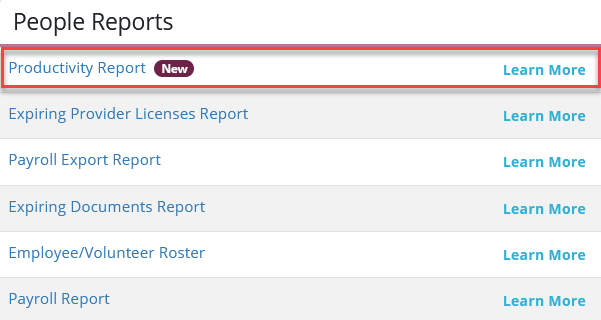
To generate the Productivity Report, navigate to the Report Center under the Reports tab. In the People Reports section, select Productivity Report.
Reports tab ➜ Report Center ➜ People Reports ➜ Productivity Report
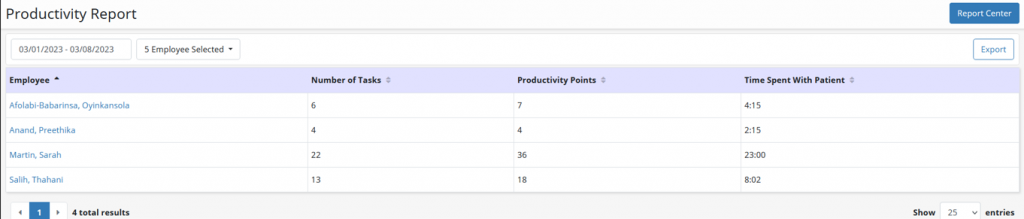
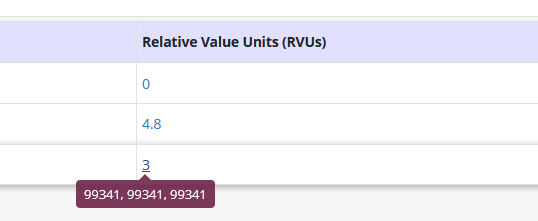
RVUs are totaled in the Relative Value Units (RVUs) column.
Hover over the total to show which codes were used to calculate the total.
Updated on 06/04/2026