Axxess Palliative Care now enables organizations to complete balance transfers between payer levels, allowing organizations to move outstanding balances from a primary payer to a secondary or tertiary payer. Once transferred, organizations can generate and submit claims to the appropriate payer, with all balance movements and claim activity accurately reflected in financial reporting. This enhancement streamlines billing operations by ensuring accounts receivable are reported correctly and claims are billed according to each payer’s specific requirements.
To transfer balances to secondary or tertiary payers, users must have permission to view, add, edit and e-submit claims, and view and edit collections in Axxess Palliative Care.
To give a user permission to view, add, edit and e-submit claims, and view and edit collections, edit the user’s profile and navigate to the Permissions tab. In the Billing section, select View, Add, Edit and E-Submission next to the Claims permission. Then select View and Edit next to the Collections permission. Click Save to finish granting the permissions to the user.
People tab ➜ People Center ➜ Edit ➜ Permissions tab ➜ Billing section ➜ Claims ➜ View/Add/Edit/E-Submission ➜ Collections ➜ View/Edit ➜ Save

To transfer a balance from the primary payer to a secondary or tertiary payer, the primary payer’s claim must be in Paid status with a balance remaining. Navigate to the Billing tab and select Collections to view the list of claims with balances and the status of the claims.

To complete the balance transfer while in the Collections tab, select the edit icon under the Actions column.

Scroll down to the Transfer Balance section.
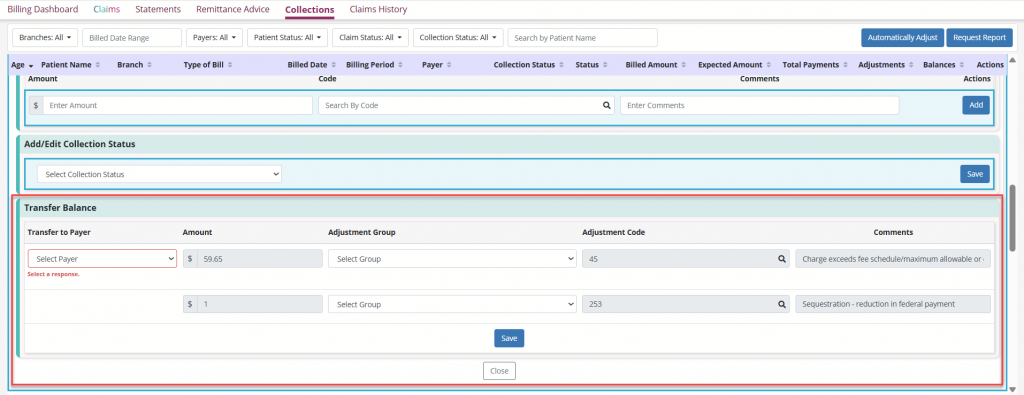
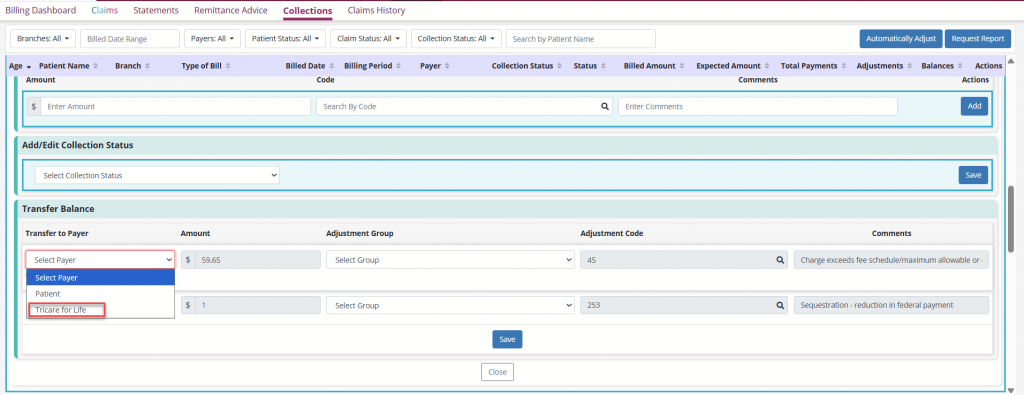
To select a payer to transfer the balance to, click the Select Payer drop-down menu. If the patient has a secondary or tertiary payer available, the user will see those payers listed. If the patient does not have a secondary payer listed, only the Patient option will be available. Selecting Patient will set up a balance transfer to the patient and result in a line item on the patient statement. For more information on patient responsibility balance transfers, click here.
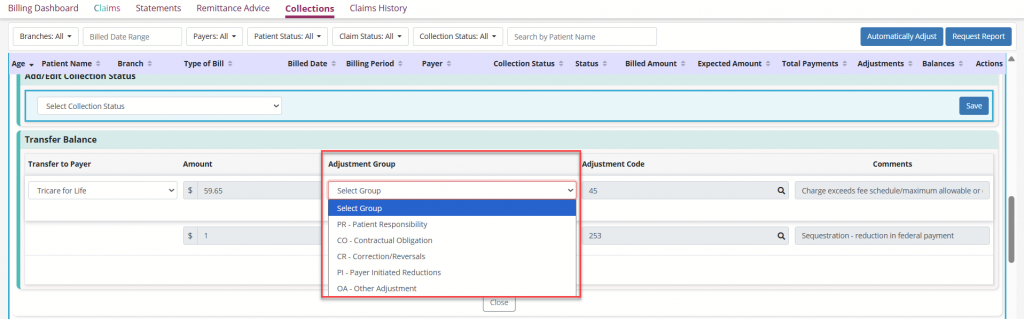
Once a secondary or tertiary payer is selected, any adjustments that were associated with the primary claim will be displayed in the Transfer Balance section. This includes the amount of the adjustment, the adjustment code and any comments that may be associated with the adjustment.
To save the balance transfer, select the Adjustment Group for each listed Adjustment Code.
When the total of the adjustments plus the paid amount matches the billed amount, selecting Save triggers a pop‑up confirming whether the user wants to generate a new claim from the balance transfer.
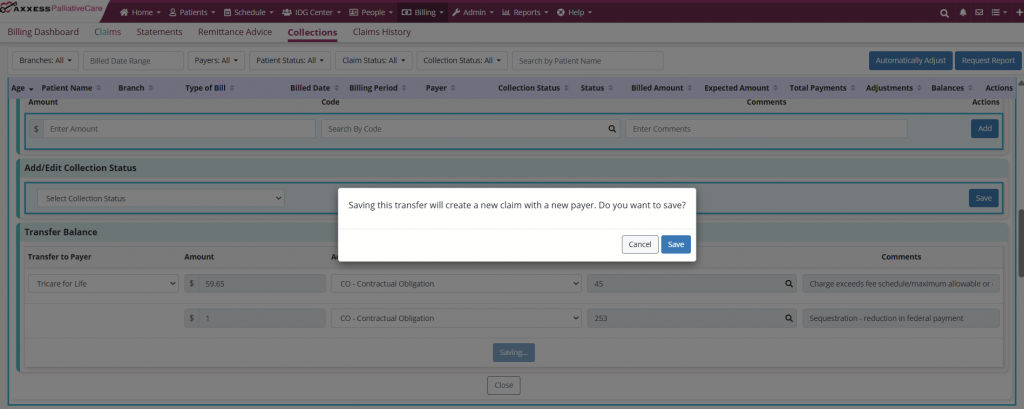
Select Save to confirm that the balance was successfully transferred.
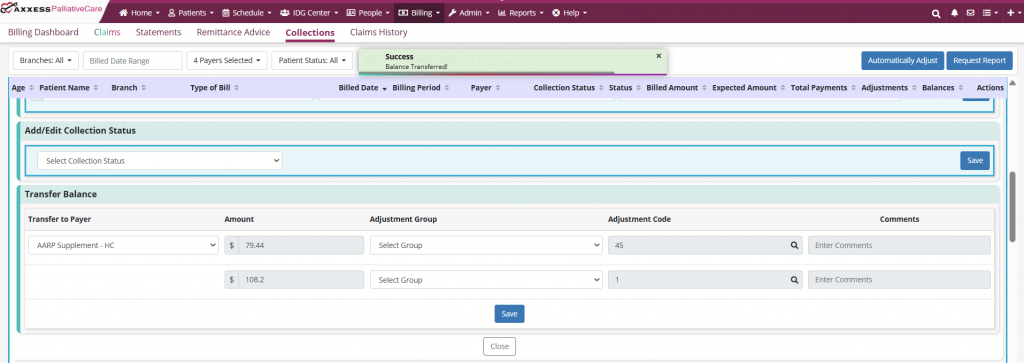
The successful transfer will result in a $0 balance for the original payer and the claim for the original payer will no longer be displayed in the Collections tab.
To view the newly created claim for the secondary or tertiary payer, navigate to the Billing tab and select Claims. Using the filters at the top of the screen, locate the patient name and date of claim. Select the claim name to open.
Once the desired claim is located, navigate to the Payers and Codes tab. The Bill To Payer pill will be displayed next to the insurance payer that was selected for the balance transfer and there will be a Coordination of Benefits section below the Payer section.
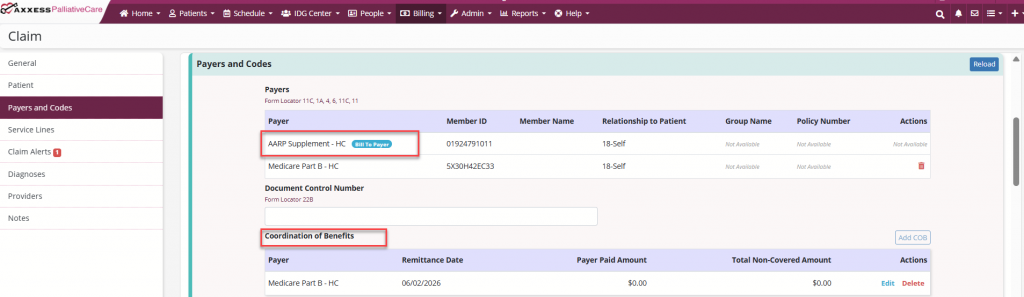
The Coordination of Benefits section displays the following information:
Payer
Remittance Date
Payer Paid Amount
Total Non-Covered Amount
Actions
To view or edit the information in the Coordination of Benefits section, select Edit under the Actions column. The following fields will then be available to edit and update:
Payer: The payer that the balance is being transferred from. This field cannot be edited.
Remittance Date: The date of the remittance advice from the original claim or payer.
Remaining Patient Liability: The total amount from the Claim Adjustment Reason that will be billed to the secondary payer.
Payer Paid Amount: The amount of the payment from the original payer remittance.
Total Non-Covered Amount: This represents the portion of the total healthcare bill that is not covered by any of the insurance plans involved.
The following fields under Claim Adjustment Reason are also available to edit and update:
Code: This field is populated with the adjustment code from the balance transfer.
Amount : This field that is populated with the amount from the balance transfer.
Quantity: This field defaults to 1.
Qualifier: This field is populated with the adjustment group from the balance transfer.
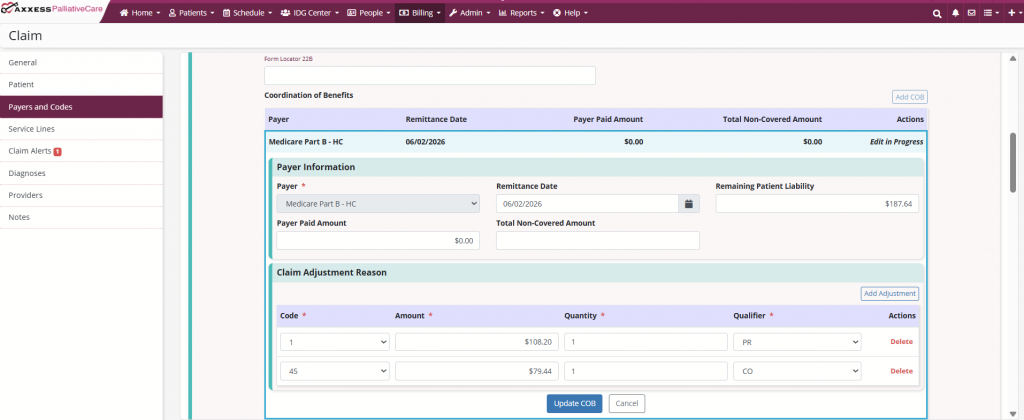
While all fields except the Payer field are editable, the total adjustment amount plus the total payer‑paid amount must equal the total billed amount to verify and submit the secondary payer claim.
If the secondary payer is Medicare, select Yes under Is the billed payer a Medicare secondary payer? and select the appropriate reason from the drop-down menu.
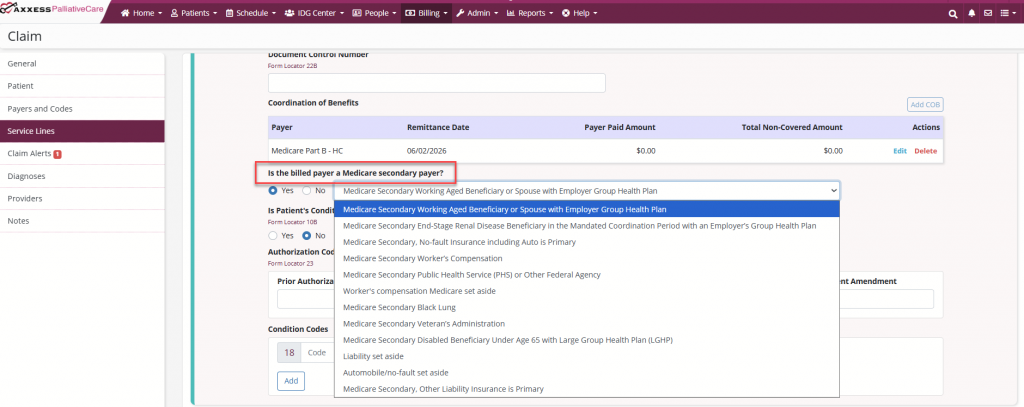
Once the claim has been reviewed, the user can verify and submit the claim.
Updated on 7/16/2026